
TABLE OF CONTENTS
- Search and edit phrase
- Add new phrase
- Import/Export phrases
- Import translated phrases
- Phrase library import
- Phrase library export
- Check translation
This section allows you to add, create, and update your phrase library, offering assistance in generating SDS across multiple languages simultaneously. It grants you control and management over your personalized phrase library.
To access the phrase list, simply click on the link highlighted in the screenshot below.
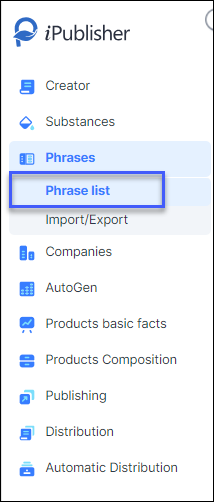
Search and edit phrase
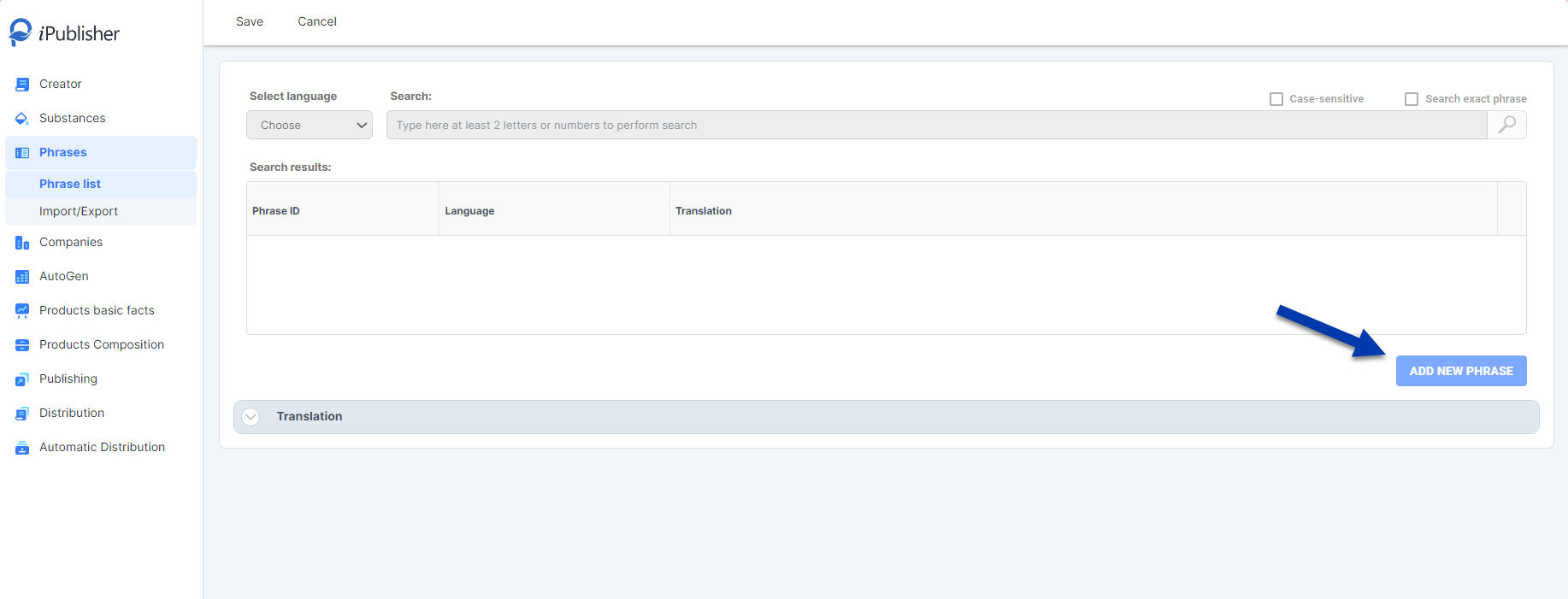
To modify an existing phrase, begin by conducting a search using any keyword. Once you've identified your phrase from the search results, click on the pen icon located on the right-hand side. This action allows you to edit the phrase and include any necessary translations.
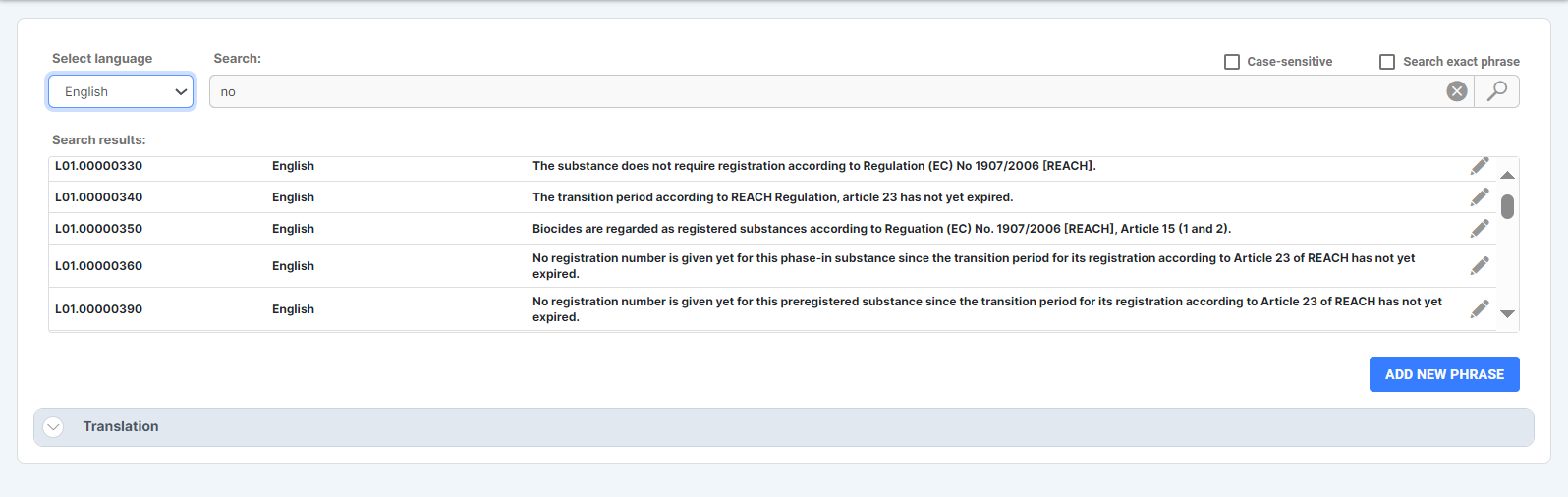
Click on the pen icon on the right side of the phrase and it will appear in the field below, ready to be edited.
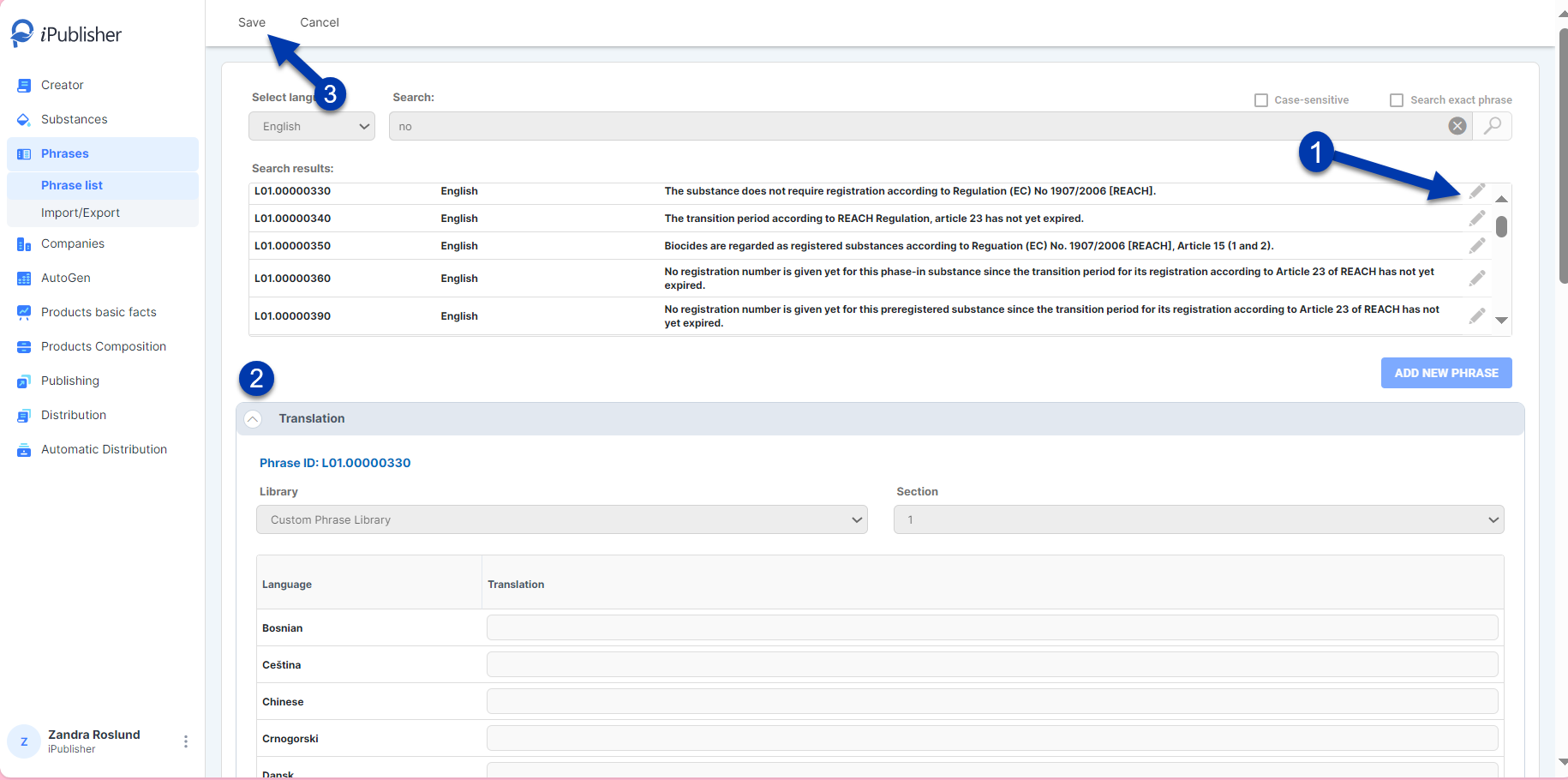
After adding translations or editing the phrase click ‘SAVE’ button at the top of the page.
Adding a missing phrase
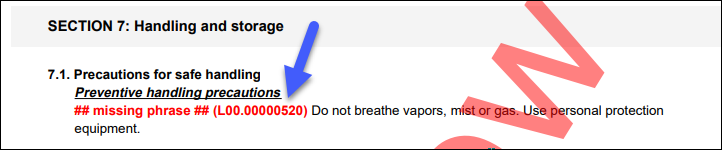
If you preview your SDS and notice there is a red text saying 'missing phrase' and the phrase ID (in this case L00.00000520, example from the image below) starts with the letter L. That means that the phrase is missing a translation for the selected language and it is a phrase that you have created in your Own phrase library.
To fix this, go to your Phrase library and search for the phrase ID and then edit the phrase using the steps mentioned above and add a translation for the language that you need.
Add new phrase
Select the 'Add New Phrase' button. Choose the appropriate library and section where the phrase should appear. Enter the phrase for at least one language. If no entry has been added, the new phrase won't be created. Once you've included all available translations for the new phrase, click the 'SAVE' button located at the top of the page.
Context menu
You can create an 'own phrase' from free text via the Context menu. In the Creator, right-click on a free text phrase and choose 'Create new phrase.' Using the context menu allows you to create a new phrase without leaving the Creator, making the workflow more seamless.
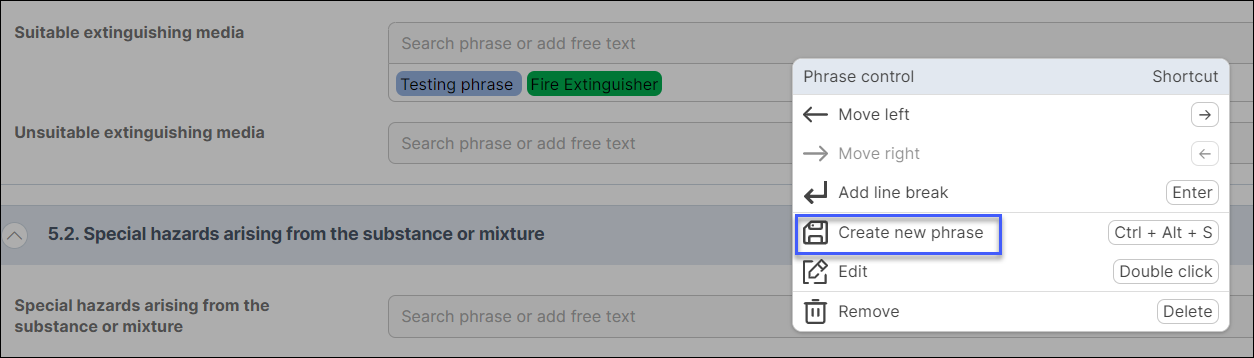
In this menu you can also add line breaks and rearrange the phrase order. There is currently a video on the iPublisher start page demonstrating the Context menu.
Import/Export phrases
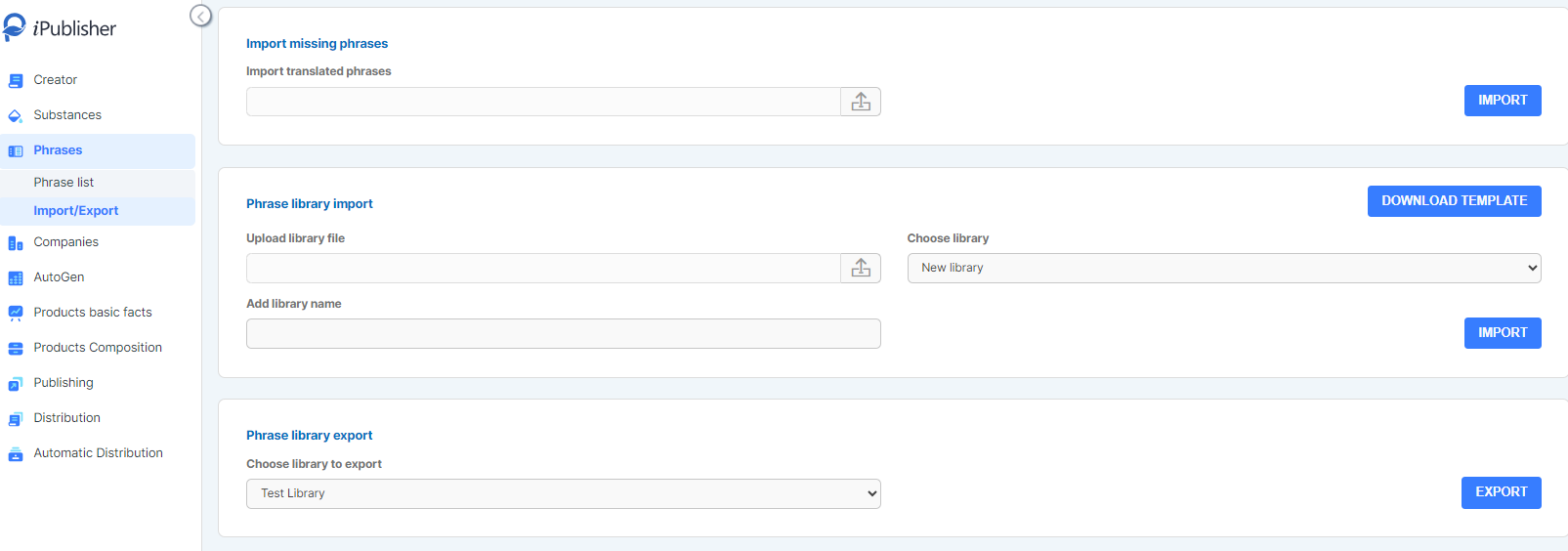
If you are managing more than one phrase or maybe more than one translation, here you can download and upload your library and phrases through Excel sheet.
Import translated phrases
This feature allows you to import missing phrases that have been exported from your product. The Excel document must be exported from the publishing section of your product.

Phrase library import
This section enables you to create and modify your own phrase library. To initiate a new library, download the provided template, input the desired phrases into the document, and then upload the file using the 'Upload library file' option. Choose 'New library', assign a name for the library within the 'Add library name' field, and finally, press 'import' to complete the process.

Phrase library export
To change existing library, you need to export the library you want to edit. This can be done under ‘Phrase library export’. Choose your library in the drop-down menu.

The exported phrase library comprises two sheets: 'LibraryTemplateGuide' and 'CustomPhraseLibrary'. The first sheet provides instructions about the document along with a list of available languages within the Creator. The second sheet contains your personalized exported library phrases.
Save this document to your desktop for phrase editing or additions. Then, import the modified document back into iPublisher using the 'Import' function.
Under 'CustomPhraseLibrary', note that you cannot rename the columns 'PhraseID' and 'ImportedID'. For the 'Section no' column, renaming isn't allowed, but you can modify the section number. This column allows you to assign a section number to facilitate finding phrases in iPublisher, though it's optional as all phrases can be utilized in all sections.
Depending on setup in Creator, the number of available libraries may be different (e.g.: Intersolia, Own, EuPhrac, DHI…).
Check translation
When product is done and you want to publish it on several languages, first step is to check if you have all translations in languages you want to publish.
Checking translations can be found and checked in 2 places:
1. In upper tab above the product:
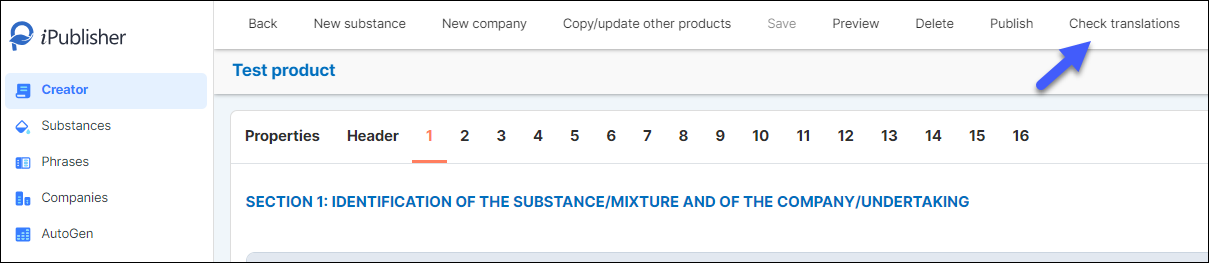
And when you click on it you will get pop up window where you will mark the countries you want to publish:
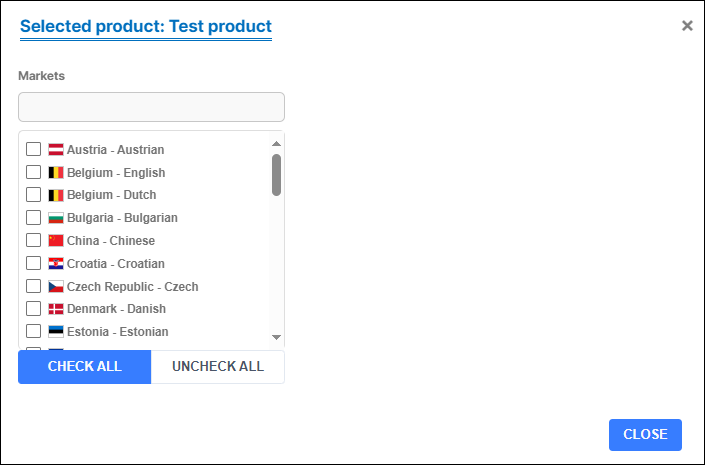
Select country(s)/language(s) that you want to publish your product for (Remember that you chose market when you created a ‘New product’). The selected countries/markets will be listed to the left.
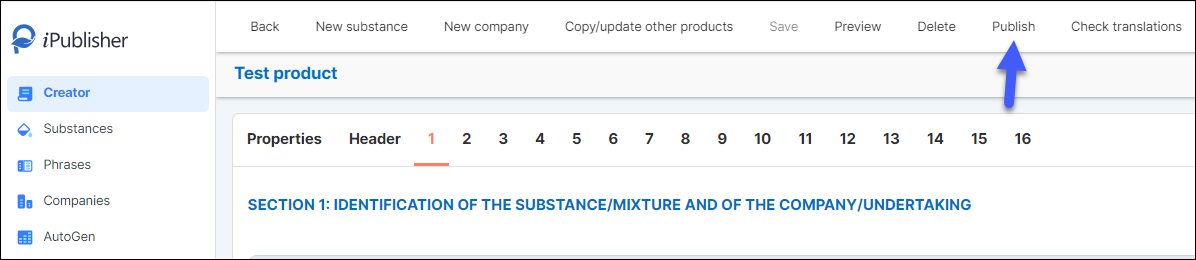
2. Same procedure can be found when you click on ‘Publish’ above your product. You will also get the list of the countries and by marking the country you want; you will get the button ‘Export missing translation’ and follow the procedure.
Under the button ‘Export missing translation’ you will export missing phrases from the countries/languages that have been marked.
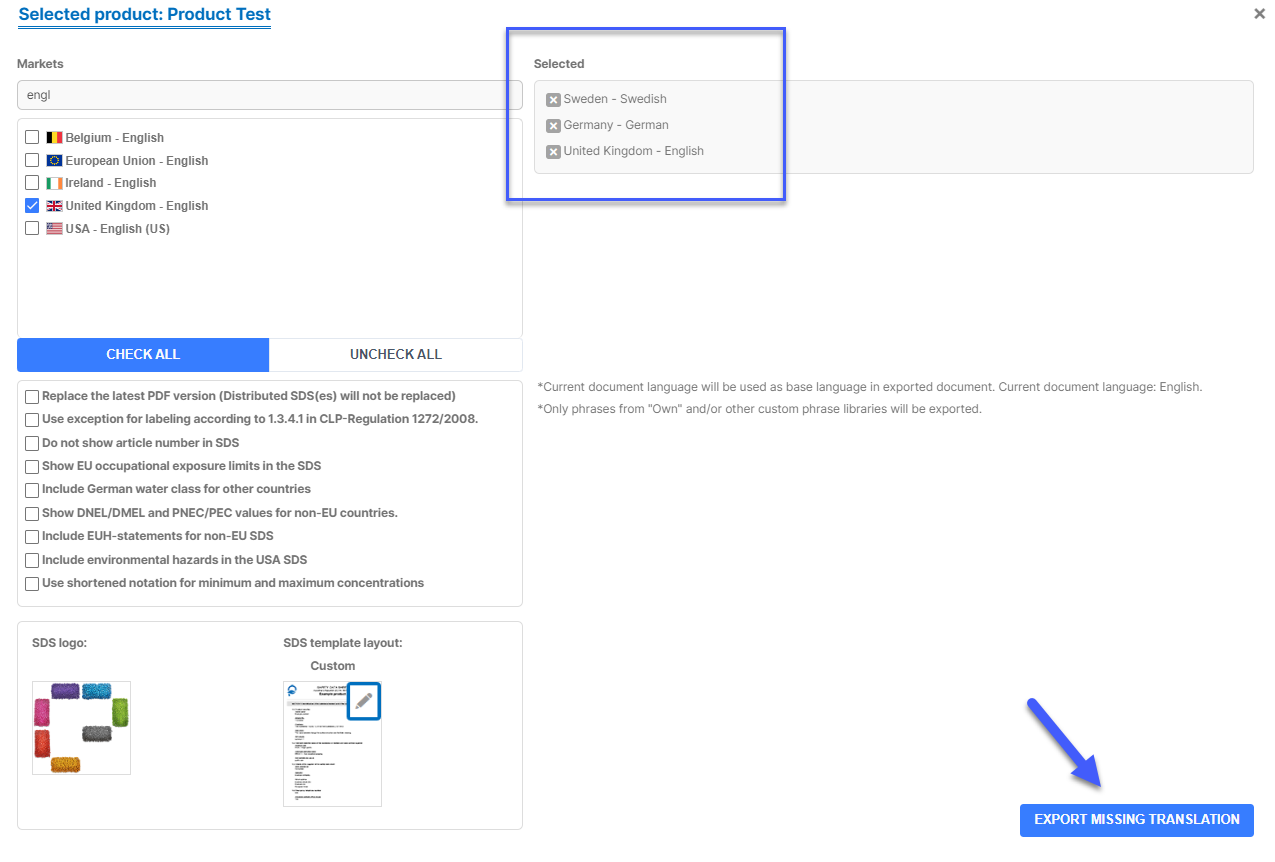
*Only phrases from ‘Own’ and/or other custom phrase libraries will be exported. The document will be exported into an Excel document.
In the first sheet ‘Missing base translation’ you will get some explanation and a list of the phrase ID’s that are missing translation.
The countries/languages are exported in separated sheets with the ‘Current document language’ as base language translation.
When this list is completed with your translations, save it to your desktop and import under ‘Phrases’ - ‘Import translated phrases’.
Keep in mind that only phrases you have created will be visible. Other phrases with missing translations (from other libraries – Commercial ones) must be sent to Customer service.