
TABLE OF CONTENTS
- Substance list
- New substance
- Remove a substance
- Copy substance
- Harmonized substances
- Show automatic transfer of substance data to #8, #11, #12
- Add Exposure scenario
- Restriction lists
Substance list
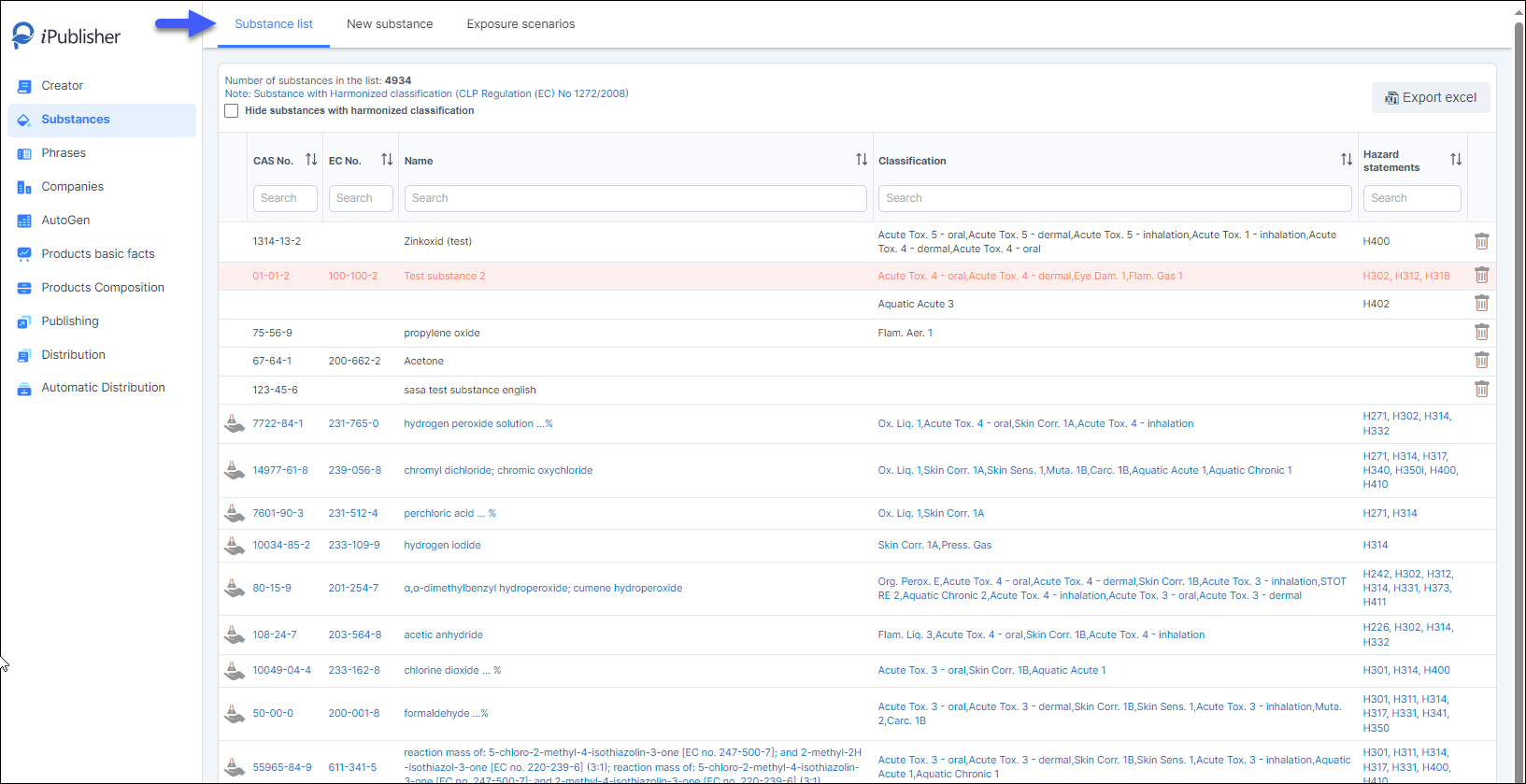
This section allows you to search, add, and edit substances intended for use in your safety data sheet (SDS). To find a particular substance, utilize filters such as 'CAS No.', 'EC No.', 'Name', 'Classification', or 'H-statements'. The list of substances includes Table 3.1 from Regulation (EC) No 1272/2008 (CLP), which comprises substances with harmonized classification. These substances are highlighted in blue, indicating their harmonized classification, which cannot be altered.
New substance
Basic information
Add basic information about the substance. The name can be specific to the country/language.
When creating and publishing SDSes for multiple markets, it's essential to include names for each special country. Otherwise, if a particular language's name is missing, it will be shown in English as default.
Regarding substance classification, there's a button labeled 'APPLY RULES' located beside Classification and Hazard statements. When applying classifications by clicking 'APPLY RULES', the system automatically selects corresponding Hazard statements. Conversely, by entering Hazard statements, the system automatically selects the relevant classification.
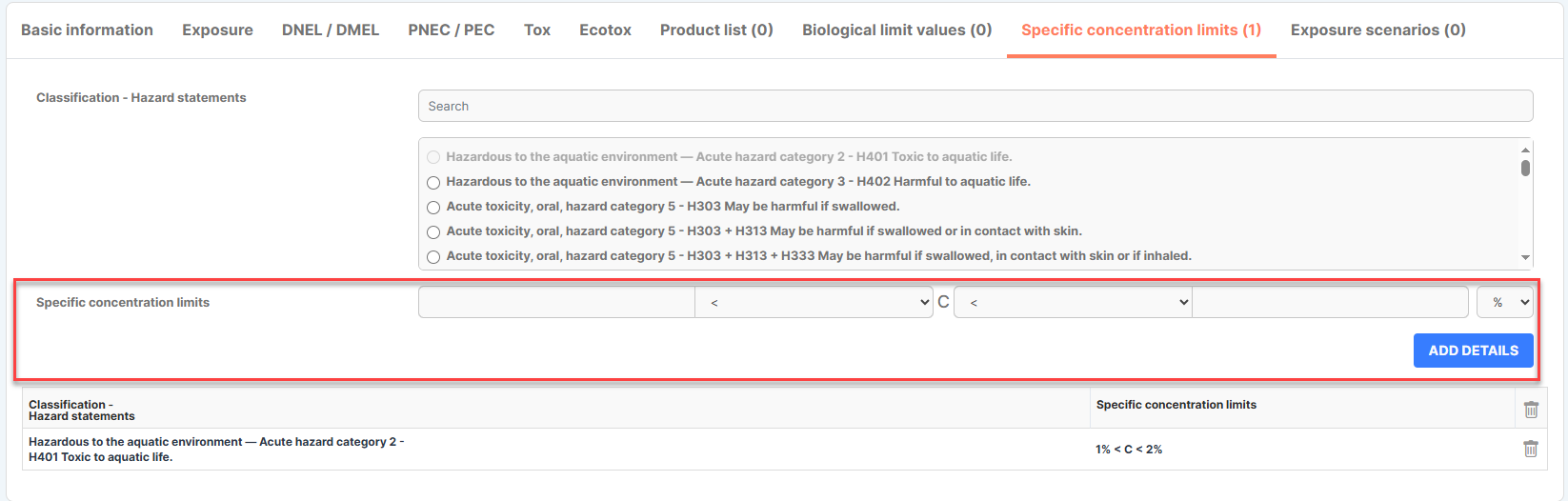
Specific concentration limits (SCL)
You can add values for Specific concentrations limits (SCL) to your substance.
Substance – Exposure (OEL)
Here, you can input exposure limits for the substance, tailoring them to as many countries/markets as necessary for your product's publication. Remember, it's essential to have the substance name in a specific language before entering the Occupational Exposure Limit (OEL) for that country.
DNEL / DMEL
Add DNEL / DMEL limits for the substance.
PNEC
Add PNEC limits for the substance.
Substance – Toxicological info
Add available tox data for the substance – click on the title to expand the fields.
Substance – Ecotoxicological info
Add available Ecotox data for the substance - click on the title to expand the field.
Product list
When a substance is utilized in a product, you can review the products where that substance is included. If the substance is utilized across multiple products, any changes or deletions made to it will affect all products where it's used. So, if you modify or remove the substance and then reintroduce it into a product, those changes will apply across all products where it was previously used.
Remove a substance
Substances can be removed entirely and can be done in two ways, first from the substance list besides substance there is a bin and by choosing the mentioned substance and clicking ‘Delete’.
If the substance is already connected to other products, you will be notified by the system and provided a list of products that the substance is included in. This means that only substances that are not in use may be deleted immediately.
If the substance appears in any products, first delete the substance from every product listed and then you may proceed with the deleting.
Note that this list can also be exported to excel for further reviewing by clicking Export to excel. You can search within the columns before exporting to filter the list.
Copy substance
Search for the substance you want to copy. Click on the substance that you would like to make a copy of. Click on Copy substance then choose the information you want to copy and create a new substance.
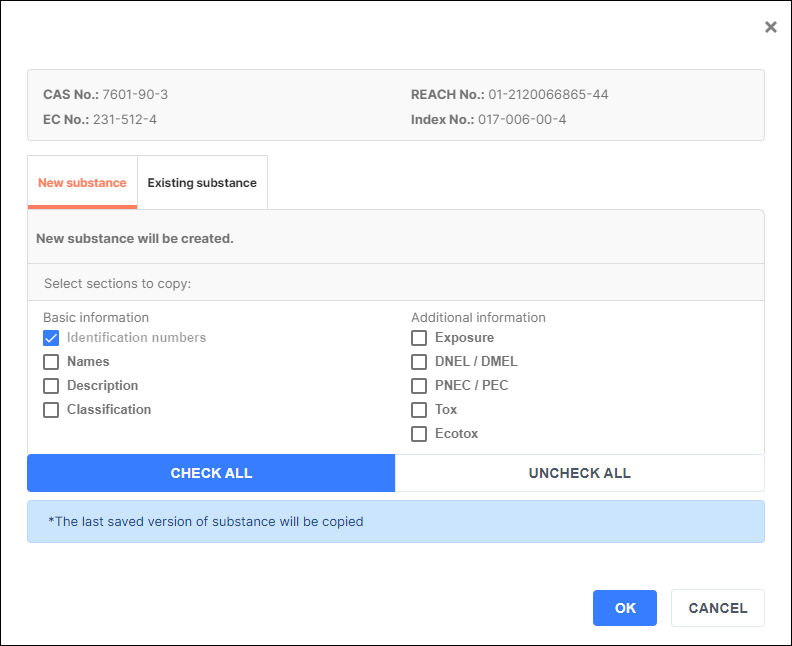
If you make a copy of a harmonized substance you will be able to edit/add data for this copy that would otherwise be locked in the original harmonized substance. The copy will not be blue or have the 'harmonized substance-icon' (see image below)

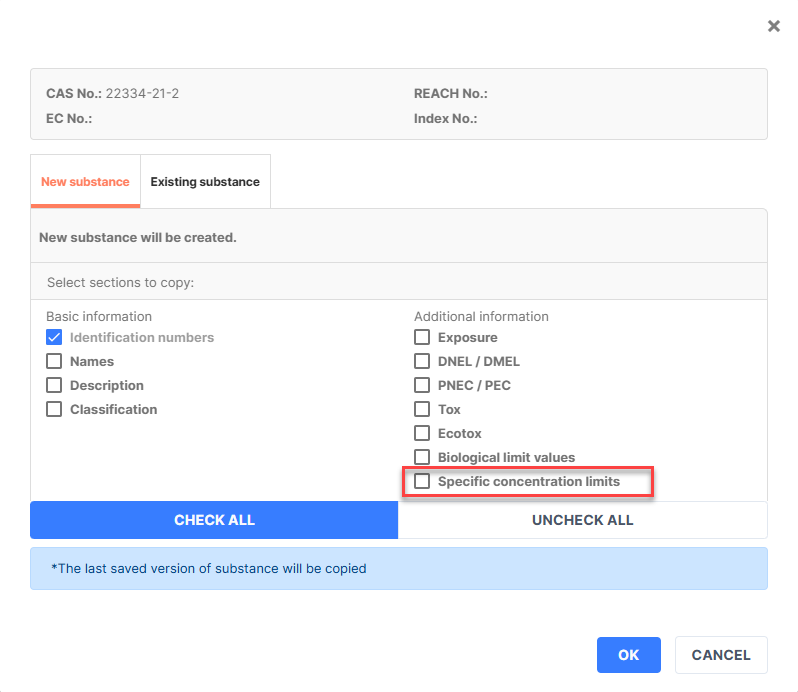
When copying Substances, Specific concentration limits (SCL) are visible as a choice as well, regardless if SCL was added to the original product.
Harmonized substances
iPublisher offers users an updated harmonized substances database. The last version that has been implemented into iPublisher system is the version ATP18.
Substances are used for section 3, where users will clearly see which substance are from harmonized database (marked with blue) and which was locally added.
Data that will be provided under this database are basic information about the product and translated names of all available languages, classification and DNEL/DMEL, PNEC information.
Under the search button in section 3, you can type CAS/EC number or name of the desired substance, and by clicking enter, the substance will appear in the dialog. By double clicking on it, it will appear in the table below. The user will only add concentration.
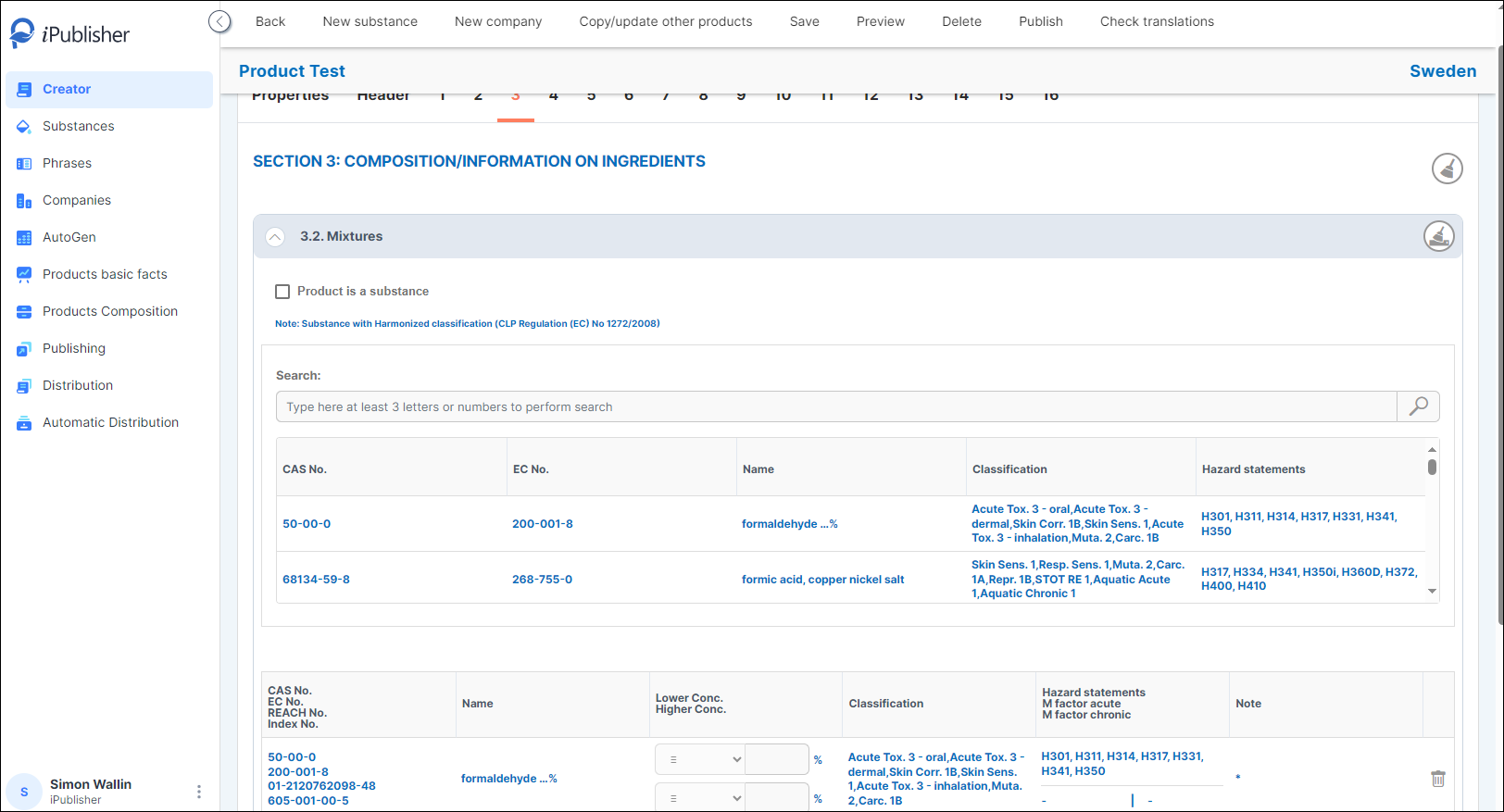
This is an add on function for customers that are using harmonized substances in their products.
To enable this setup, please contact customer service for further assistance.
Show automatic transfer of substance data to #8, #11, #12
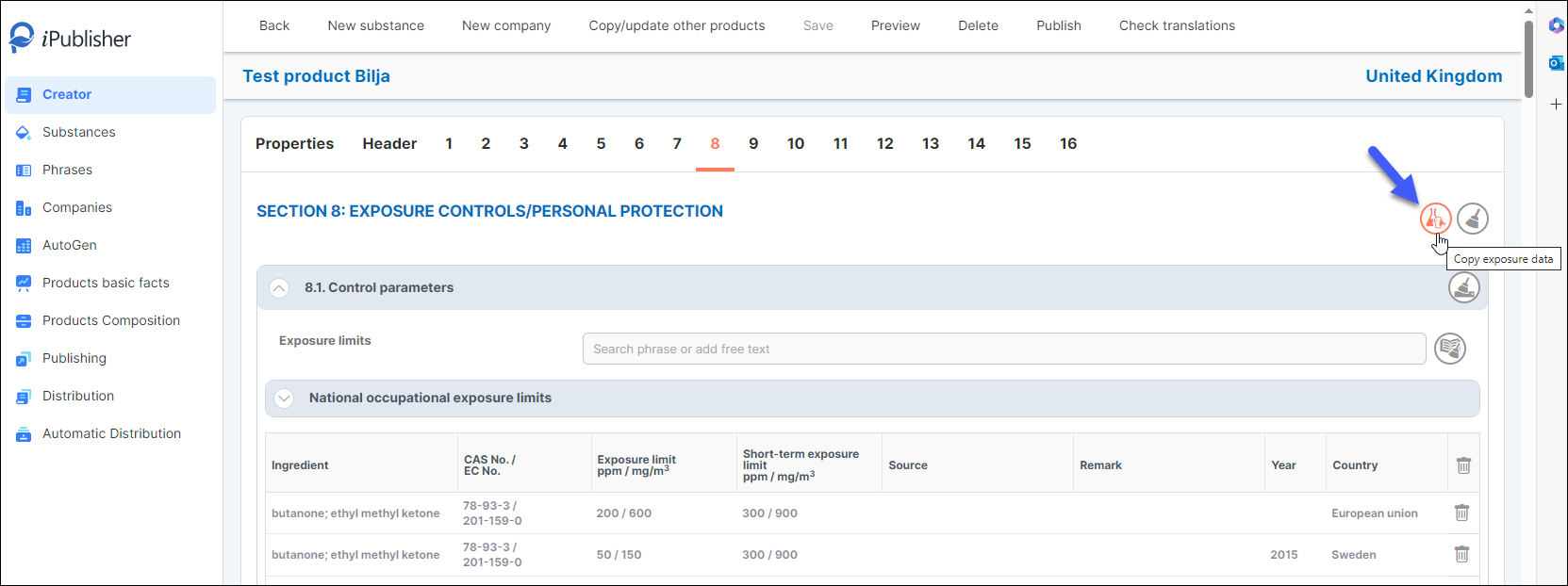
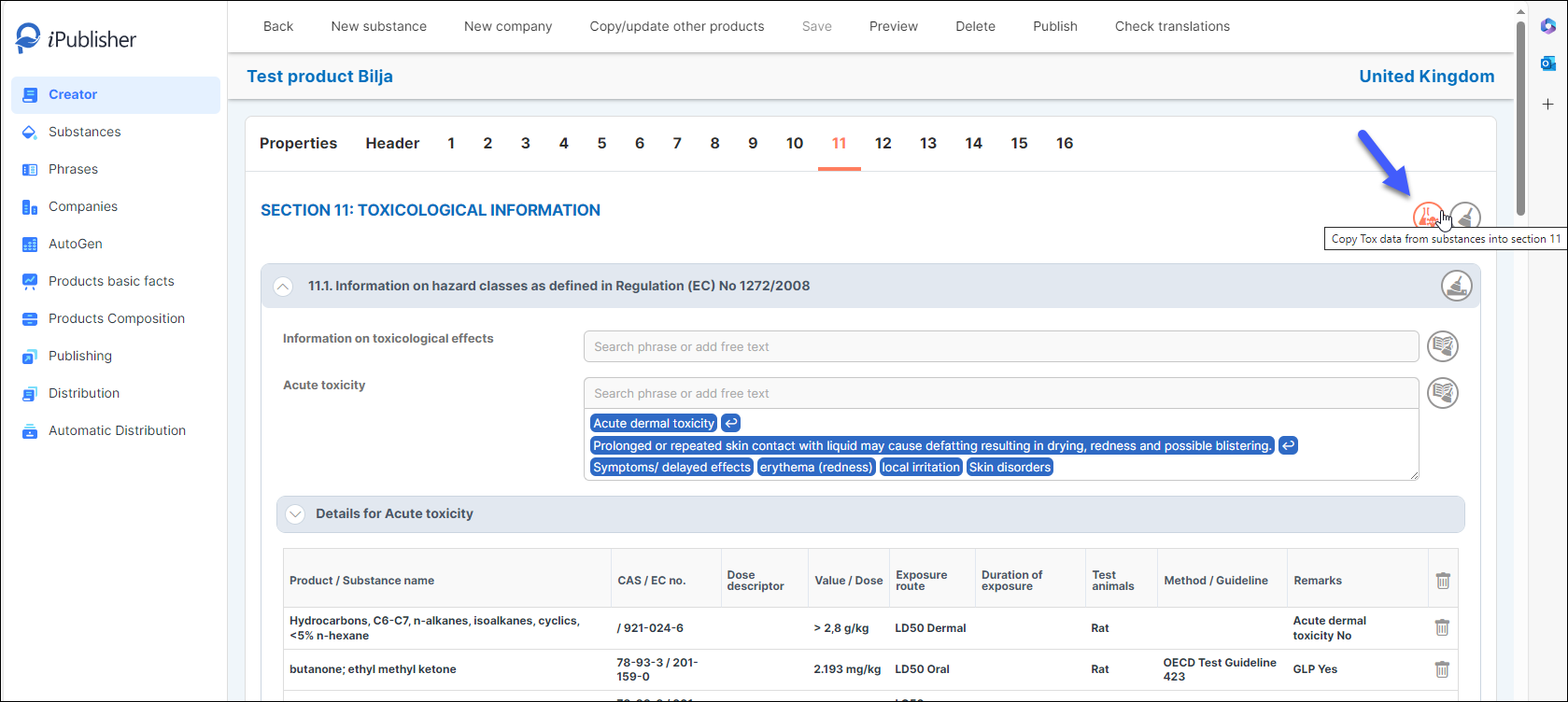
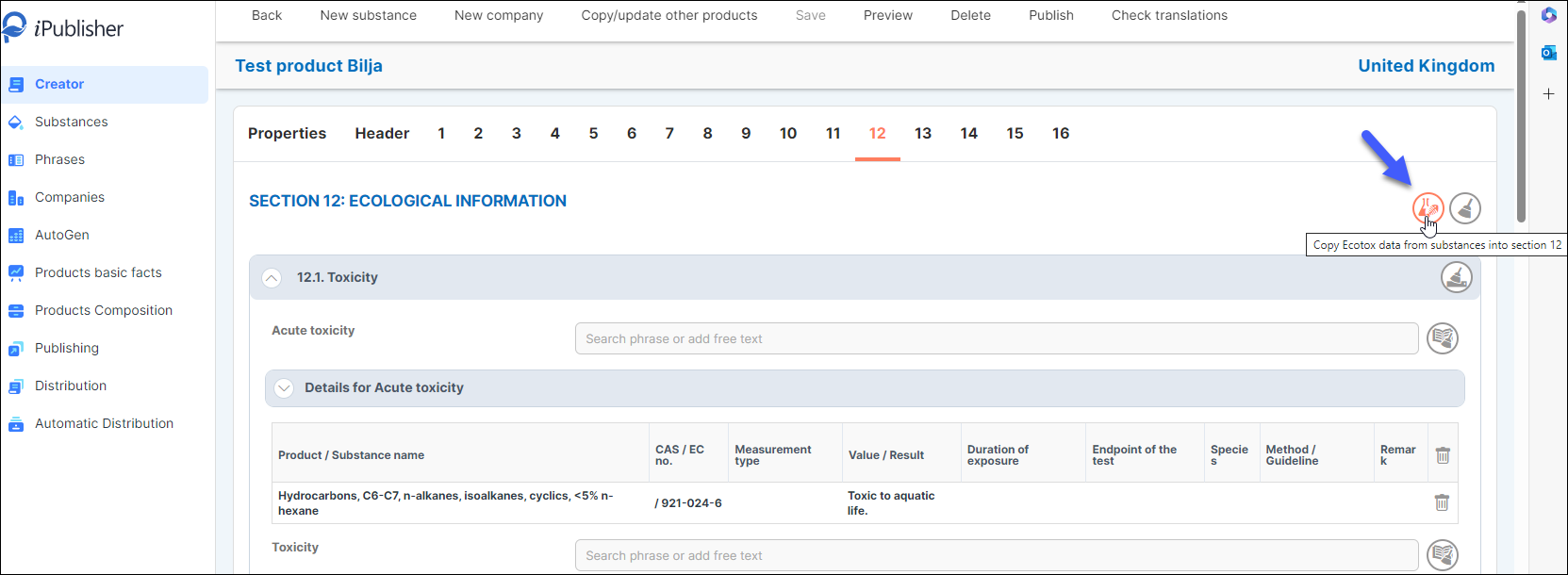
After inputting data into the substances, accessing the Creator allows us to easily retrieve that information. When we input substances in section 3, we have the option to incorporate details from the substance and apply it across sections 8, 11, and 12. Tables with values in these sections will be automatically filled with pertinent information derived from the substances.
Entered data will appear by clicking on the upper right button.
Section 8 - Copy exposure data.
Section 11 - Copy Tox data from substances into a section 11
Section 12 - Copy Ecotox data from substances into a section 12
Add Exposure scenario
In a created substance, you can incorporate an Exposure Scenario document. Simply access the Exposure Scenario tab, upload the document, input the publication date, document name, and select the language. Upon completing these details, click on the 'SAVE' button to include the document.
By doing so, you've linked an exposure scenario document to a substance. The subsequent step involves creating an eSDS for products containing this substance and those requiring an eSDS. To generate an eSDS, you can navigate to the publishing section.
Restriction lists
Some substances are restricted from manufacturing, marketing, or usage due to posing significant risks to human health and the environment. These substances are listed in restricted substances lists, regardless of their authorization status.
iPublisher provides visibility into the lists where the substances you're using are listed. Details about these restriction lists can be accessed through the Substances menu.
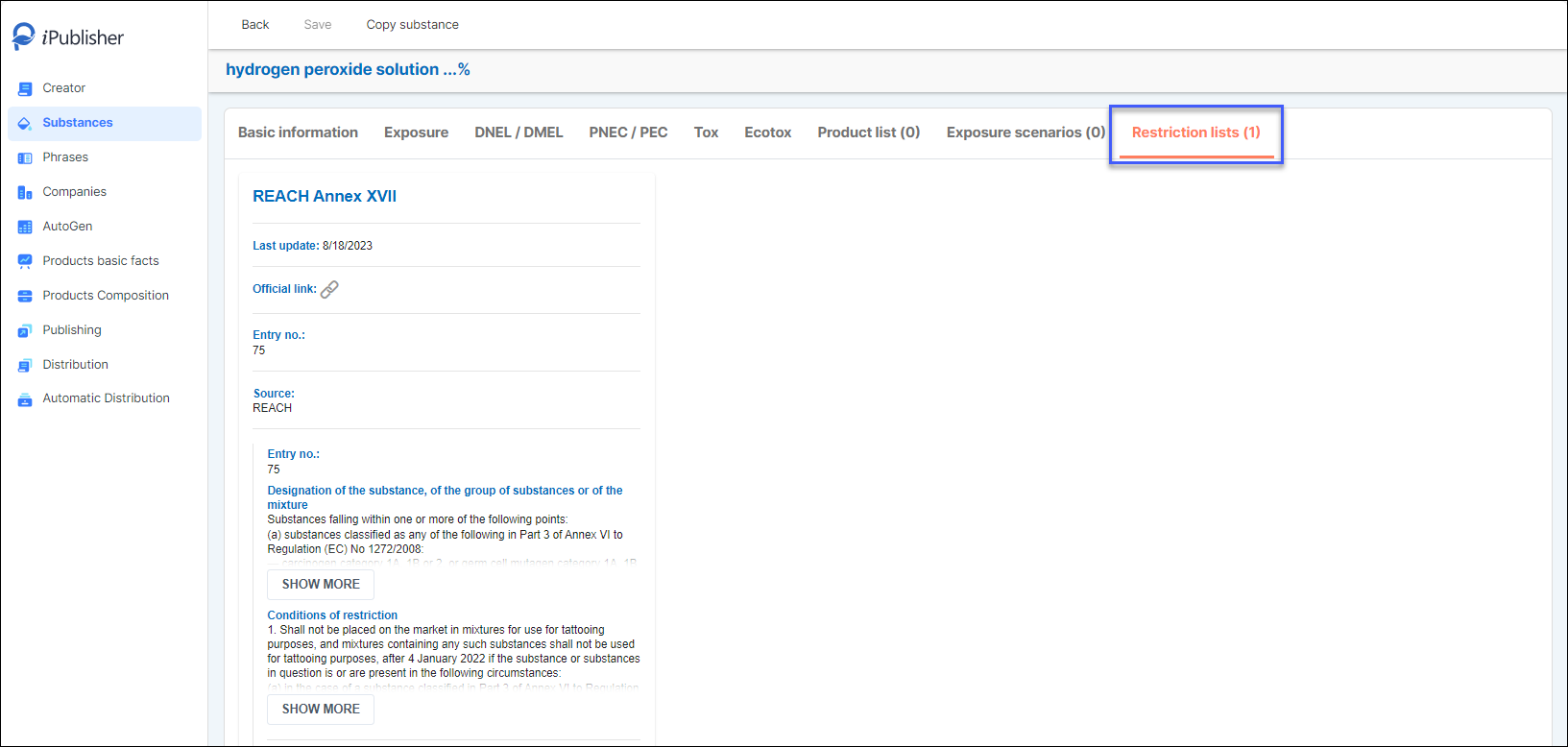
And in the Publishing menu when enter in the product overview.
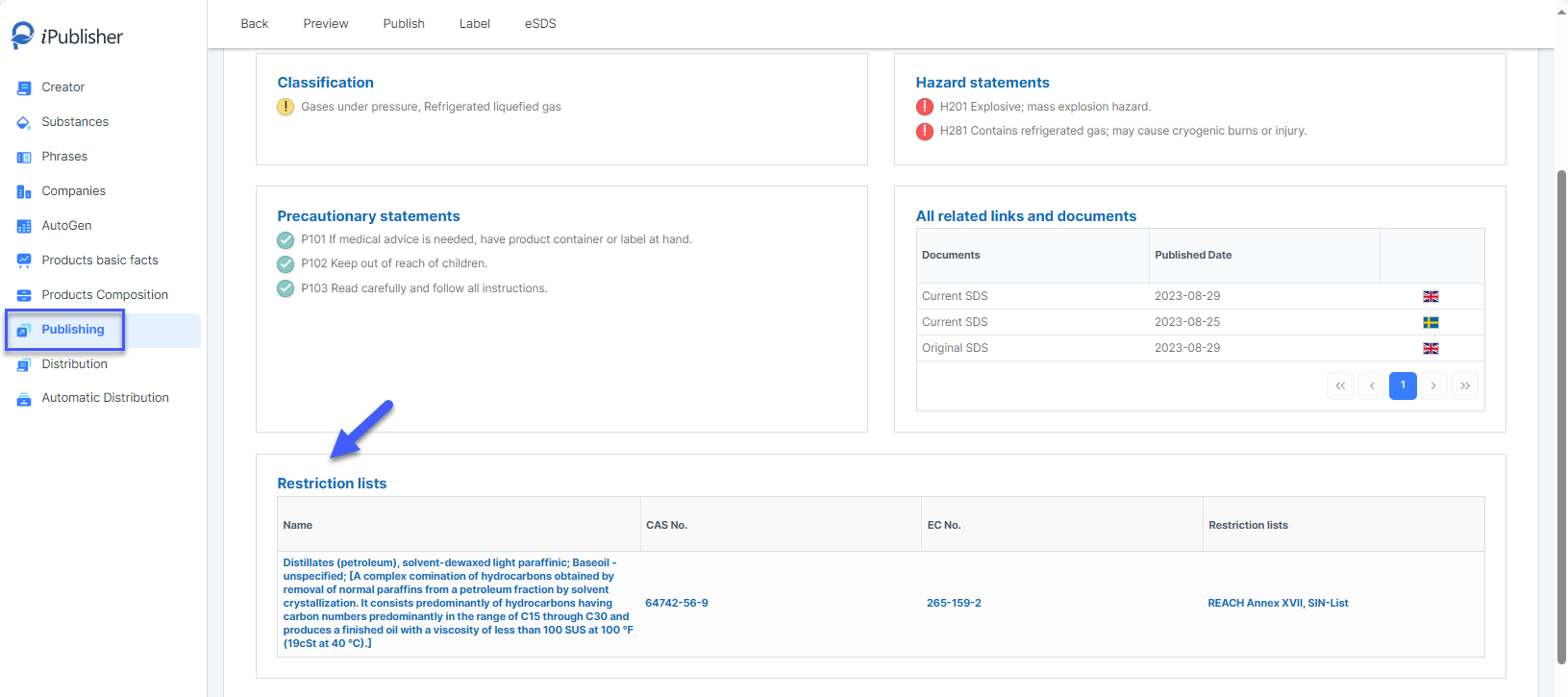
Here is the list of the Restriction lists that we support and update:
- PTB vPvB;
- REACH Annex XIV;
- REACH Annex XVII;
- REACH Candidate List – SVHC;
- SIN-List;
- Austria – ChemVerbotsV;
- Denmark - Giftige stoffer, Kemiske påvirkninger for gravide og ammende, Kræftfremkaldende stoffer;
- Germany – ChemVerbotsV, TRGS 905, TRGS 907, WGK: 1, WGK: 2, WGK: AWG, WGK: NWG, WKG: 3;
- Norway - Biocid - Ferdig vurdert og godkjent i disse produkttypene, Biocidaktive stoffer under vurdering, Forskrift om eksport og import av visse farlige kjemikalier, Prioritetslista, Produktforskriften
- Serbia - Candidate List Serbia, Lista supstanci koje izazivaju zabrinutost – SKIZ;
- Sweden - AFS Grupp A, AFS Grupp B;
- USA - California Proposition 65;
- UK - UK REACH Authorization list, UK REACH Candidate list, UK REACH list of Restrictions appendix 1, UK REACH list of Restrictions appendix 12, UK REACH list of Restrictions appendix 2, UK REACH list of Restrictions appendix 4, UK REACH list of Restrictions appendix 5, UK REACH list of Restrictions appendix 6, UK REACH list of Restrictions appendix 8, UK REACH list of Restrictions appendix 9, UK REACH list of Restrictions main list and
- Automotive industry - BMW process restricted substances, FSS7 Mandatory, FSS7 Recommended, Ford Restricted Substance List, GADSL List, GM CG4110 Substance list, HONDA Chemical Substance Manage, Hyundai Kia List of Restricted, Jaguar Land Rover Limited, Renault Nissan RNES B_00027_6_1, SCANIA STD 4158-4159 restricted, Volvo Restricted Substances.