TABLE OF CONTENTS
- Product list
- New product - main features
- SECTION 1
- SECTION 2
- SECTION 3
- SECTION 4 – 7 and 10
- SECTION 8
- SECTION 9
- SECTION 11-12
- SECTION 13
- SECTION 14
- SECTION 15
- SECTION 16
- Preview
- Publish
- Basic product information
- Copy/update other products
The Creator section in iPublisher is where you can make your own products. When you click on the 'Creator' tab, you'll see a list of the products you've already made. If you click on the 'New Product' tab at the top, you can start making a brand-new product.
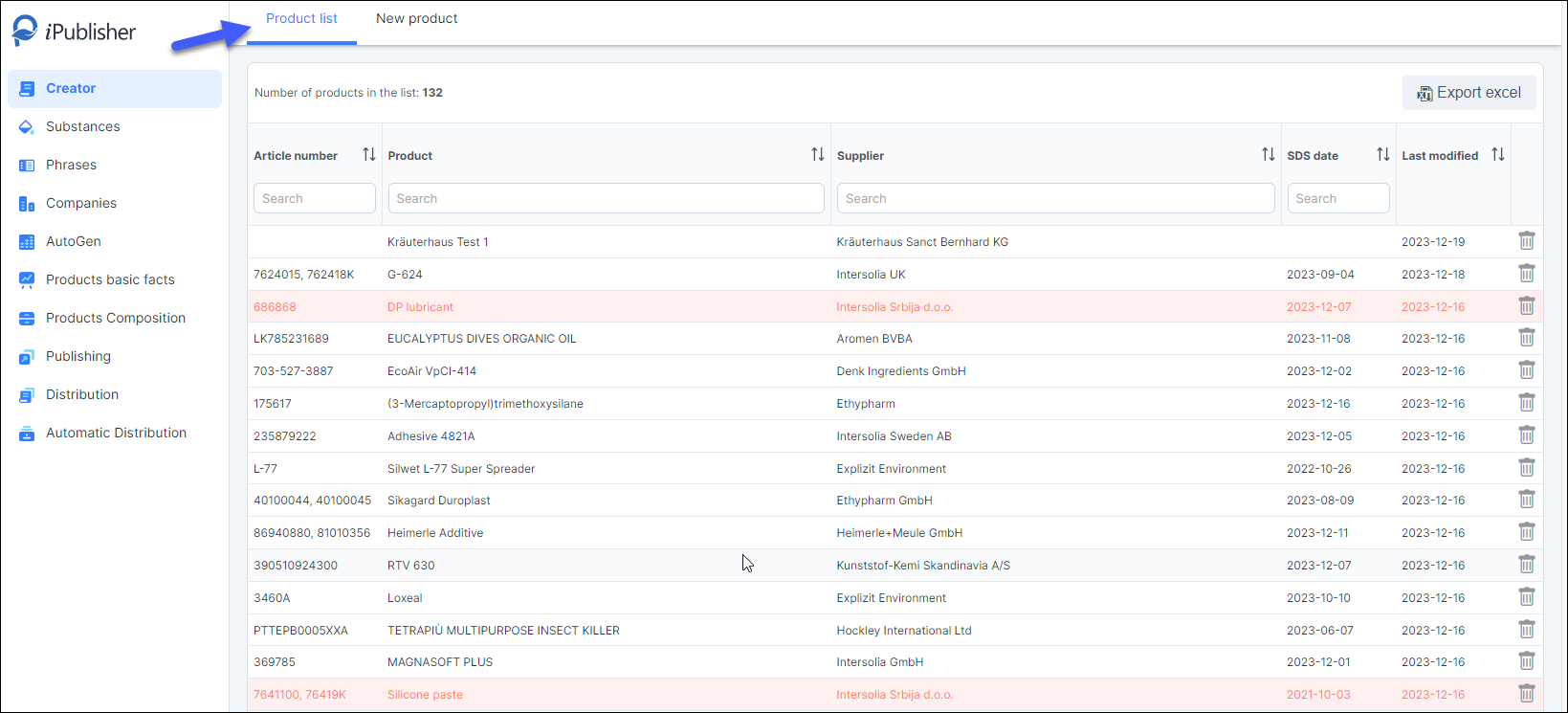
Product list
The product list displays all the products you've created. Here, you can easily search for a specific product, create a new one, or edit existing products. Use the filter fields located at the top of each column or find a search bar in the upper right corner to quickly locate products.
If you want to remove a product from the list and delete it, simply click the icon for deleting the product. iPublisher will ask for confirmation before removing the product from the list, ensuring you don't accidentally delete anything.
New product - main features
Click on the button ‘New product’ to create a new SDS.
You will be directed to ‘Section 1’. Each section is on separate page and you have to save all changes before moving to the next section.
When you are done, you can select which market you would like to preview- or publish the SDS for.
This selection streamlines the inventory process within iChemistry, ensuring accurate and market-specific information.
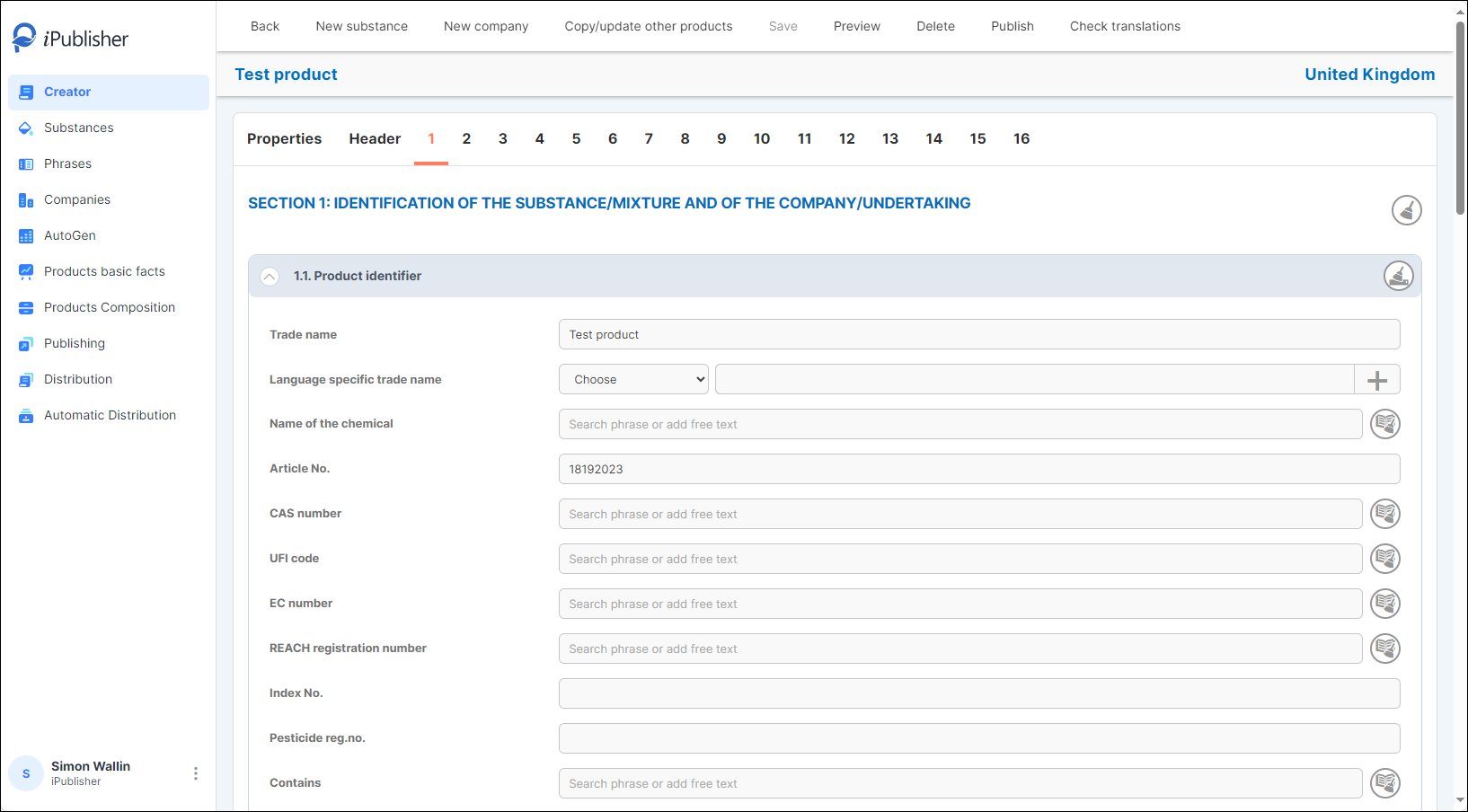
New product – Top menu - After you have saved your new product, the whole top menu will be available.
New substance (create new substance and then go back to the product you are working on)
- Create a new company
- Copy/update product information (content) to a new product or existing product
- Save changes
- Preview SDS
- Delete product
- Publish your SDS
- Check translations
Phrase mode
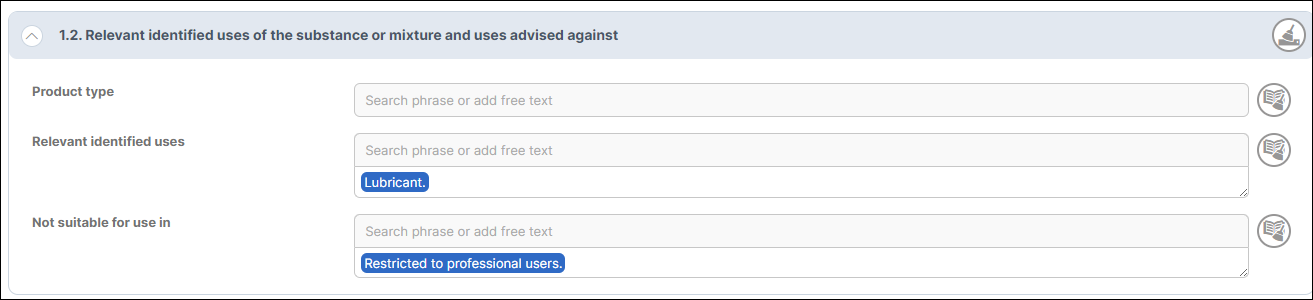
When 'phrase mode' is chosen during new product creation or product editing, specific text fields labelled 'Search phrase or add free text' will become available. If these fields aren't visible, the SDS will default to the free text mode.
For products intended for a single document language, the free text mode is more suitable and straightforward. However, if you plan to publish the product in multiple languages, we highly recommend using the 'Phrase mode' during creation. This mode significantly streamlines the process across various languages.
To add a phrase, simply write a minimum of two letters in your desired field and a pop-up window will appear with relevant search results.
Then click once on the phrase you want to add.
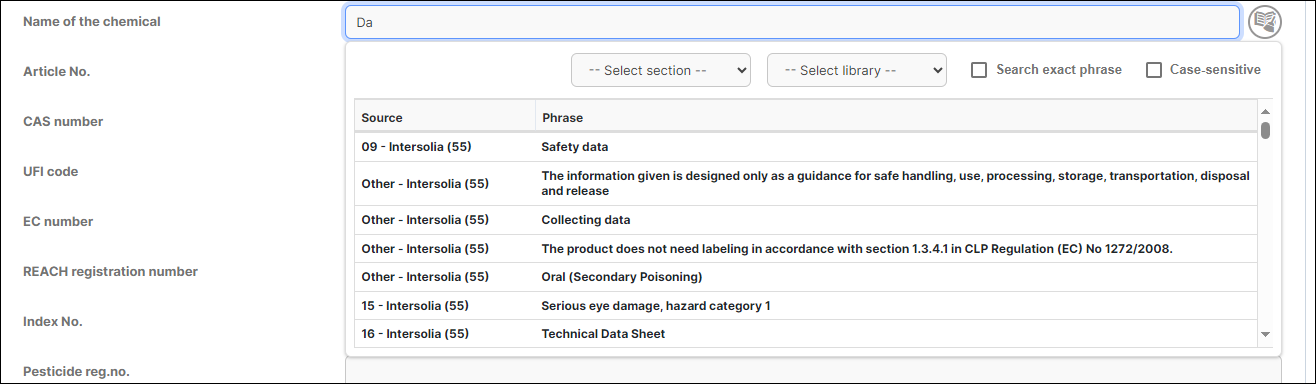
Enter your custom text by typing in the designated field and hitting 'Enter'. Phrases sourced from the library will display in a darker blue, while any newly added free text phrases will appear in a lighter shade of blue.
To fully utilize the phrase mode, you can use a set of keyboard commands to increase the effectiveness in the creation of your SDS.
Once you have clicked on your phrase you want to manage, the selected phrase will be indicated with a green colour, and then you can use the keyboard commands below.
  | Move your phrase by pressing left or right arrow key.   |
 | Delete a phrase by pressing the Delete-key. |
 | Add a line break by pressing Enter-key. 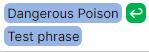 |
 + + | You can use your mouse pointer to select previous or next phrase but works just as well with the commands below. Jump to the next phrase by pressing TAB or to the previous phrase by pressing SHIFT + TAB. |
Auto save settings - After making the initial changes in a section, Creator will prompt you to automatically save your work in that section. This convenient setting will be available for every product and substance, whether it's during the initial creation or while editing.
Section specific features – Properties - Here, within the 'AutoGen' module, you have the option to utilize your product as a template. If you wish to incorporate a specific logo, template, or a unique font into your SDS, simply select from the menu below and then click 'save'. This choice applies to various sections or the 'Header'.
Assigning a product number establishes this SDS as an identification number for other modules such as 'Automatic Distribution' or 'AutoGen'.
Header - Regarding the 'Header' section, you can insert a concise text header along with version and date details for the initial SDS. Additionally, if the SDS undergoes revisions or replacements, you can update the version number and date. Specify if the SDS is only valid until a certain date due to revised versions.
SECTION 1
Product identifier/ Trade name/ Language specific trade name
To have a language for a specific trade name, add language specific trade name and select appropriate language. Creator will use appropriate name for selected market(s). If there is no name for selected market Creator will use the name that is set in ‘Trade name’ field.
Synonym – Under 'Synonym', you can input alternative names, feel free to add as many synonyms as necessary by simply clicking the plus button.
Details of the supplier of the safety data sheet
To add supplier or any other role, just type company name into appropriate field. If company is in iPublisher database Creator will show you available suppliers. If it’s not in the database, you need to create a new supplier. Click on the button ‘New company’ in the top menu. This action redirects you to the ‘Companies’ page. Once you've created the new company, you can return to continue working on your product.
Companies
On Company page all created companies for Suppliers/Manufacturers/Importers/Only representatives… will be shown.
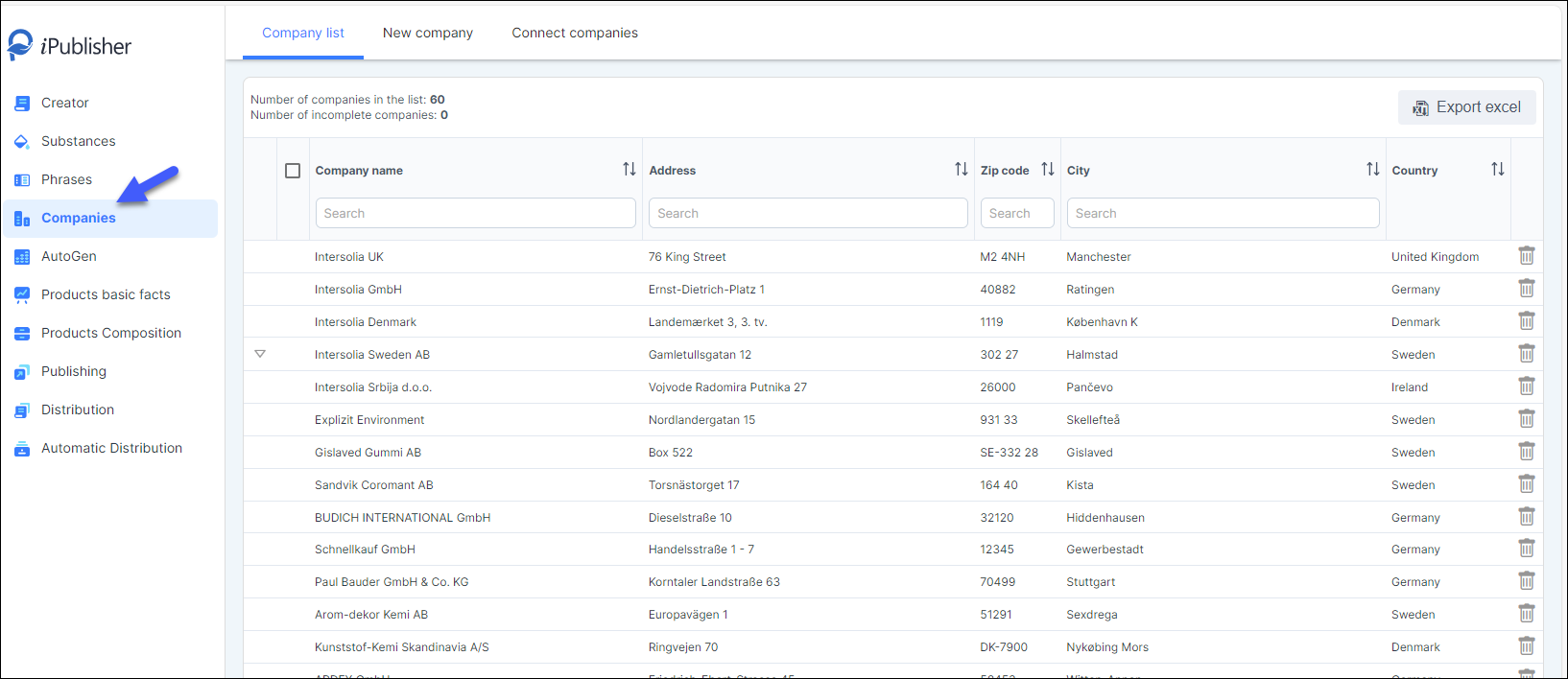
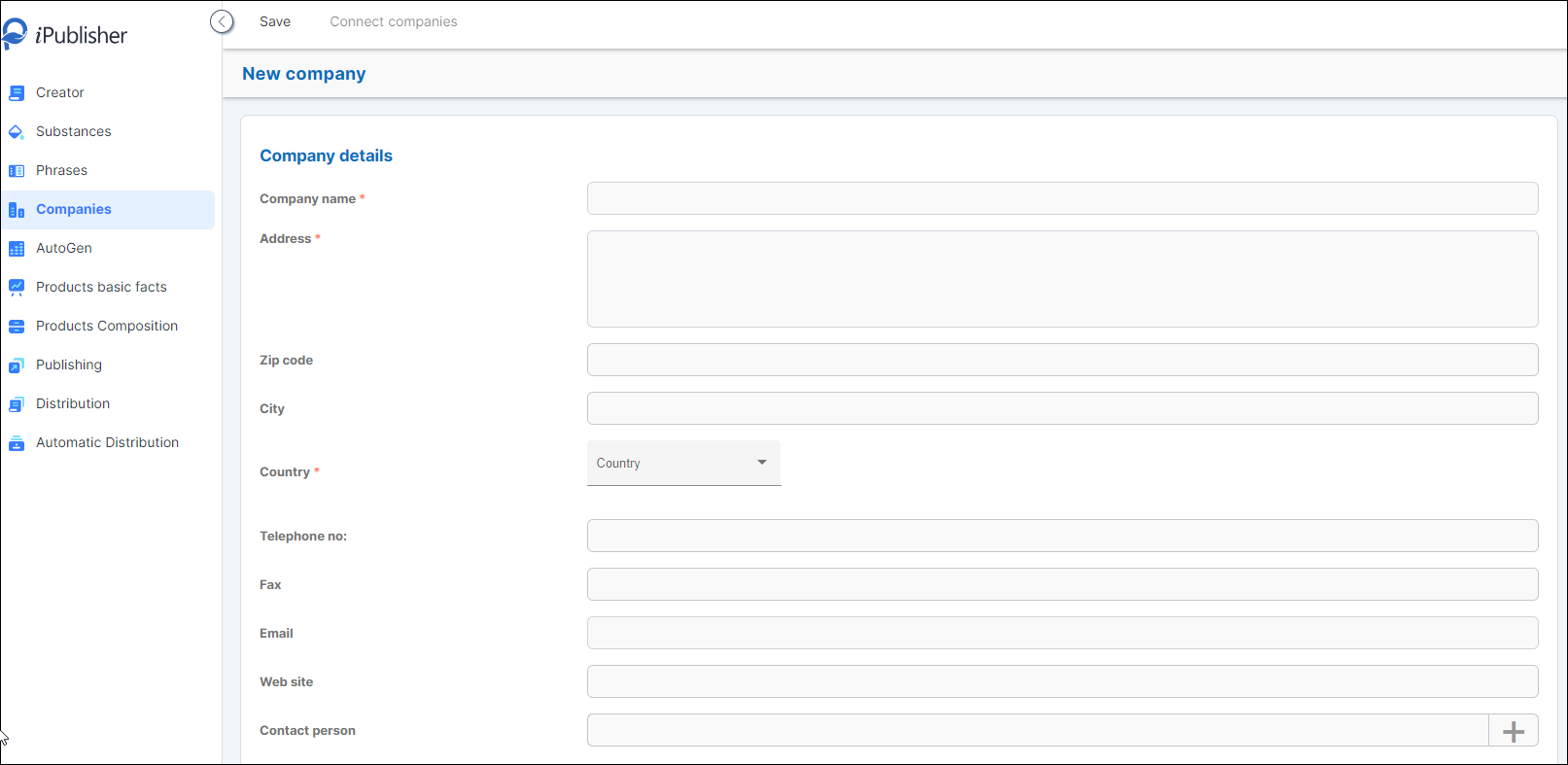
When you click on any company from the list, it will redirect you to the Company Detail page. If there's a sign next to the Company name, as shown in the picture below, it indicates that the data you've entered is incomplete.
The mandatory information required for each company includes the Company name, Address, and Country.
In Company detail page, user can change any entry and click ‘Save’ button at the top of the page. Also, when leaving page, system will ask for the confirmation if the changes should be saved.
Button for new company is on the Company list page.
When you click on the 'New company' button, a dialog box will open for you to input company information. You can also include multiple contact people. It's important to note that the minimal required information needed to save a new company includes the Company name and address details (address, city, and country). Users are informed that these are the minimum requirements for saving a new company.
Connect companies
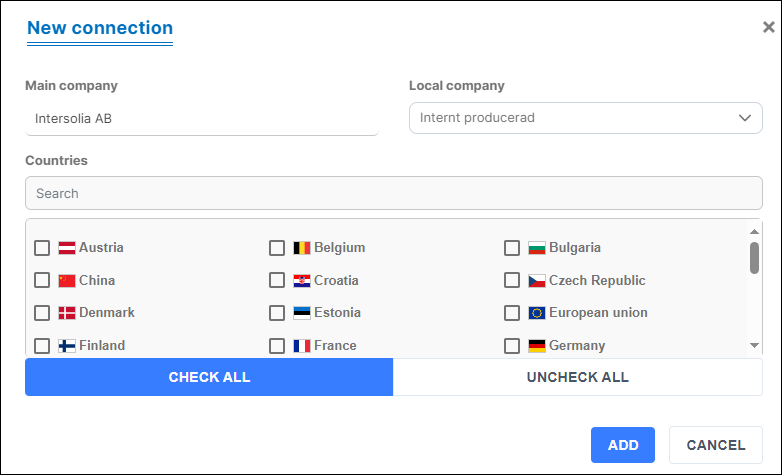
You can establish connections between your company and its subsidiary companies, production facilities, distribution partners, or local branches. Simply click on the desired company and then use the 'Connect companies' button located at the top of the page to establish these connections.
Emergency telephone number
You can include a country-specific emergency number which will be chosen during the publishing process for a particular market. If a country-specific emergency number isn't specified, the Creator will default to the one listed in the 'Emergency Phone Number' field.
Furthermore, you can select an additional emergency number for a specific market by accessing the dropdown menu on the right side of the 'Poison Center/Additional Emergency Number' subtitle and choosing the relevant market.
If there is information in the Note section of the Poison Center/Additional Emergency Number, it will be presented in parentheses on the SDS (see image below).

SECTION 2
Subsection 2.1. Classification of the substance or mixture
Can be added manually (APPLY RULES) and with additional functionality ‘Automatic classification’.
Manually added
The classifications and hazard phrases are ordered in section 2.1. in ascending order by H-code, where the EUH statements are below H-statements, also in ascending order (by EUH code).
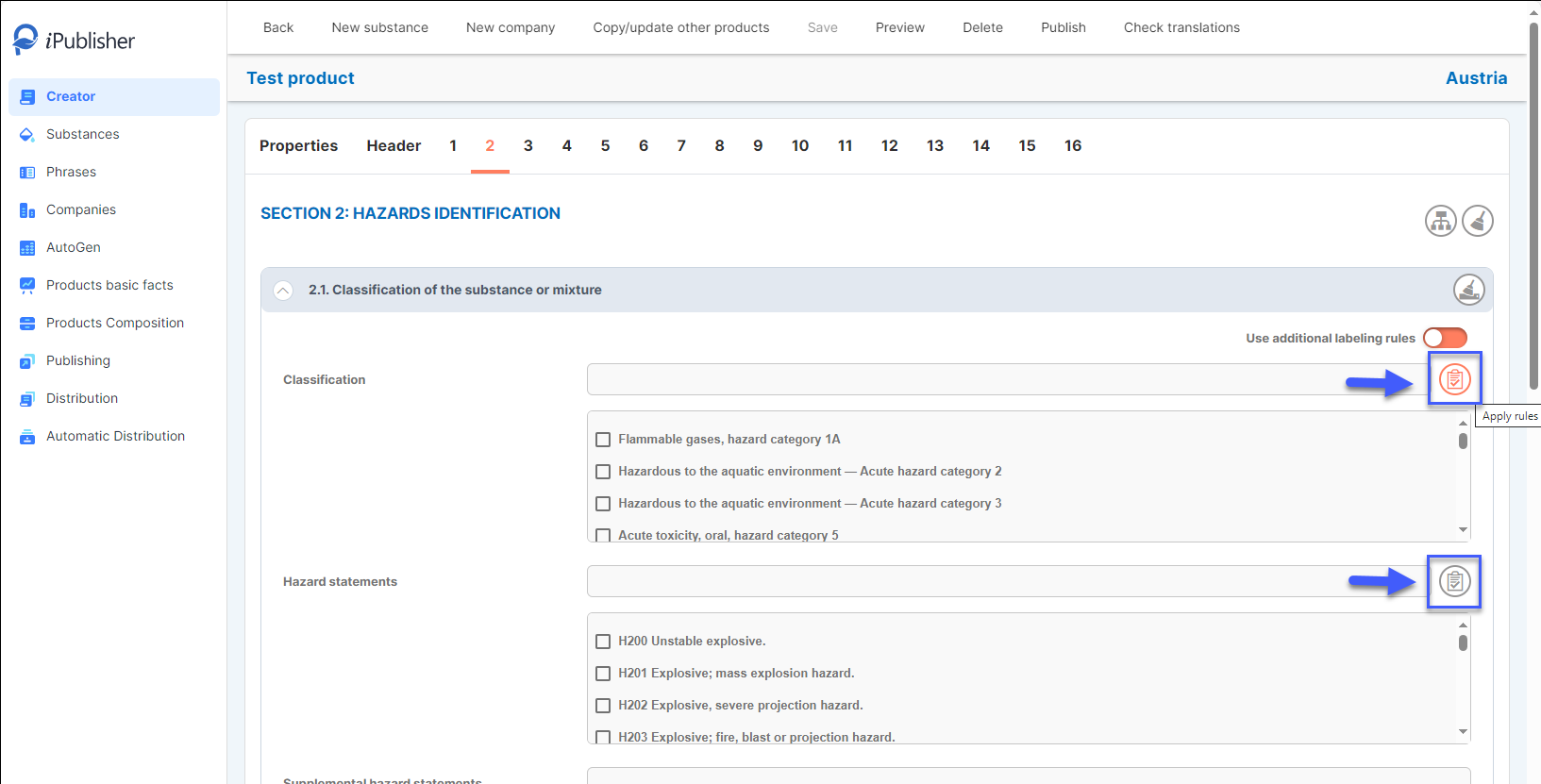
If the classification is added manually then it is enough to enter the classification or H-phrases and click the button, ‘APPLY RULES’.
EUH phrases must be added manually.
All H and EUH phrases entered in section 2.1. will automatically appear in section 2.2. with the appropriate pictogram.
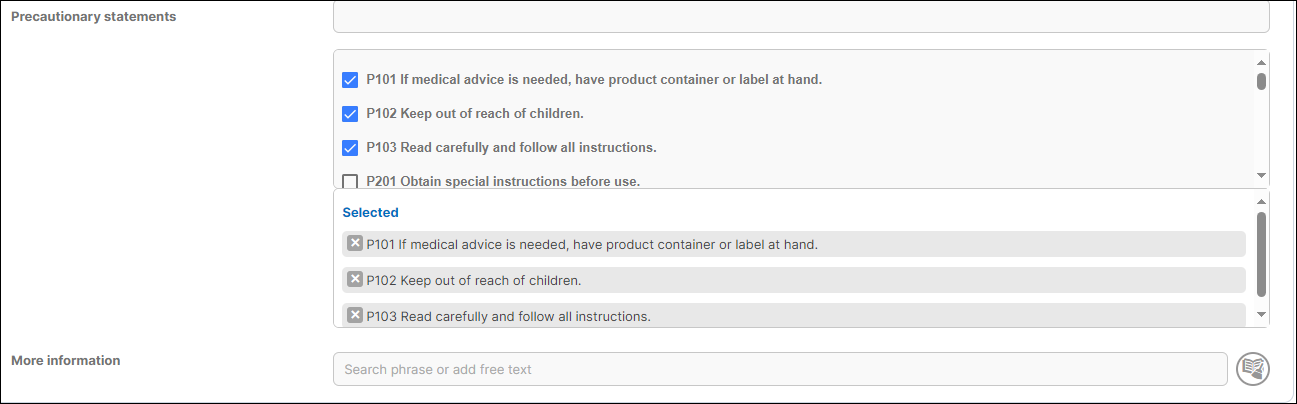
To add proper precautionary statement, do it by choosing the appropriate and clicking the square next to the corresponding P phrase. In case there is a need to add additional text (e.g. P260), use phrase mode dialogue to add it. In this way the phrase can be translated and the SDS can be published for different markets.
Automatic classification
Calculate classifications based on substances in section 3. To use this feature, you must first have added substances in section 3.
Disclaimer: Automatic Classification does not currently include specific concentration limit in calculation. In cases when substance in section 3 has specific concentration limits in Notes. Users should check resulting product classifications and potentially edit it to reflect impact of specific concentration limit.
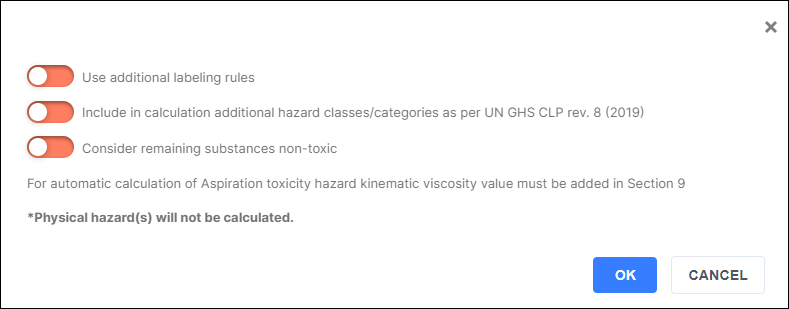
Physical hazards won’t be calculated automatically.
For automatic calculation of Aspiration toxicity hazard kinematic viscosity value must be added in Section 9.
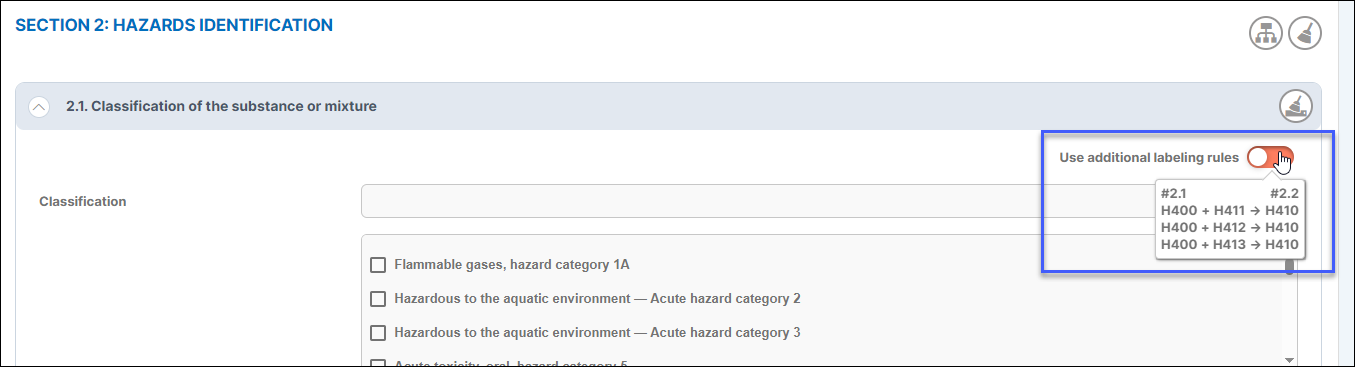
Use additional labelling rules – Is visible in for ex. Section 2. This button will apply specific rules that has been set for a classification.
It's important to note that P statements are never exact and cannot be precisely calculated. The system automatically generates appropriate Precautionary phrases based on the Hazard phrases entered, giving users the option to edit them if necessary.
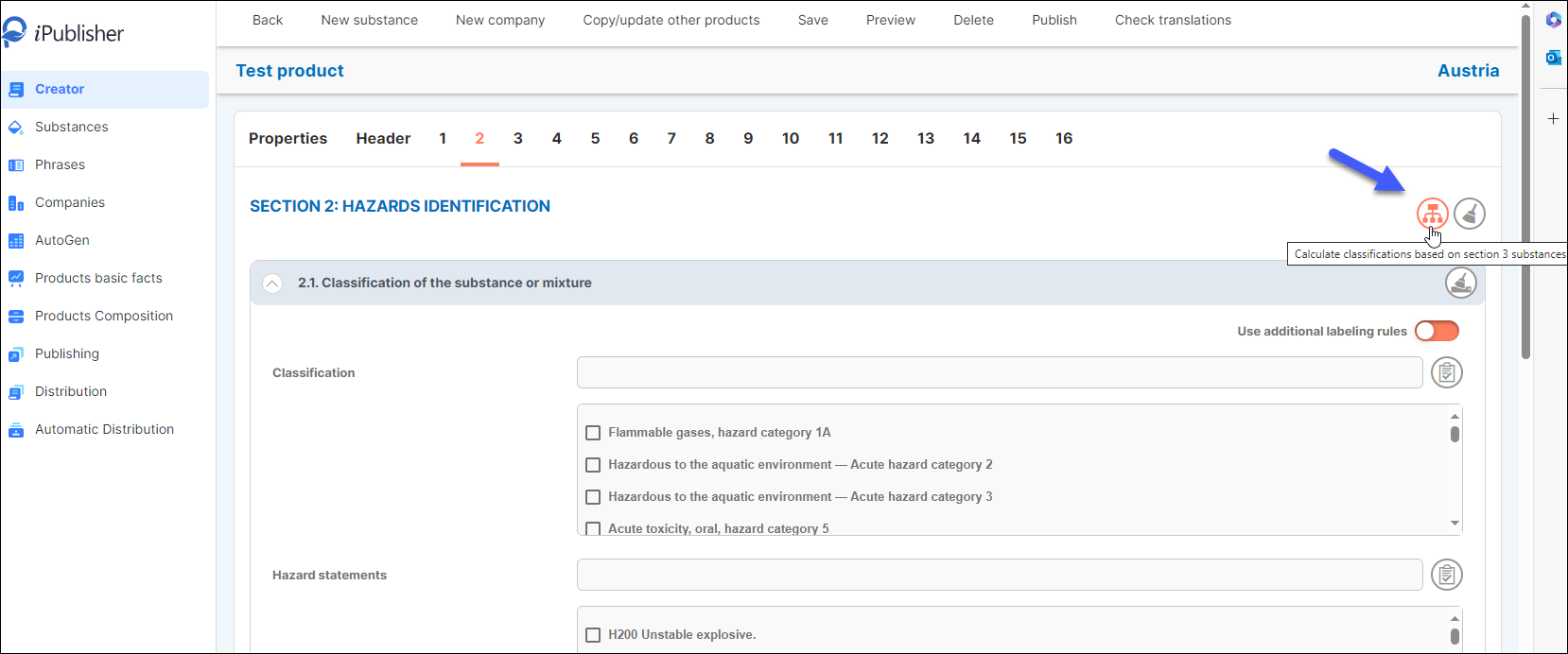
Section 2 can be effortlessly completed by clicking the button in the upper right corner. iPublisher provides users with the functionality to automatically apply classifications directly from substances located in section 3. This feature is available for UN GHS CLP rev. 8 (2019) and streamlines the process significantly.
Click the checkbox and press OK to apply the classifications.
Label elements
All H phrases added in section 2.1 will be automatically shown in section 2.2.
To add proper precautionary statement, do it the same way as for H-statements in 2.1. In case there is a need to add additional text (P260), use phrase mode dialog to add it. This way phrase could be translated and SDS could be published for different markets.
SECTION 3
In this section, you can populate the table with substances. Use the search function by entering the substance's 'CAS No.', 'EC No.', or 'Name'. Once found, double-click on the substance to select it.
If your desired substance isn't listed, you can create a new one by clicking the 'New Substance' button. This action redirects you to the substance page. Once you've created the new substance, you can return to continue working on your product.
To add a substance to your table, simply double-click on it, and it will be transferred to a new table where you can input the concentration.
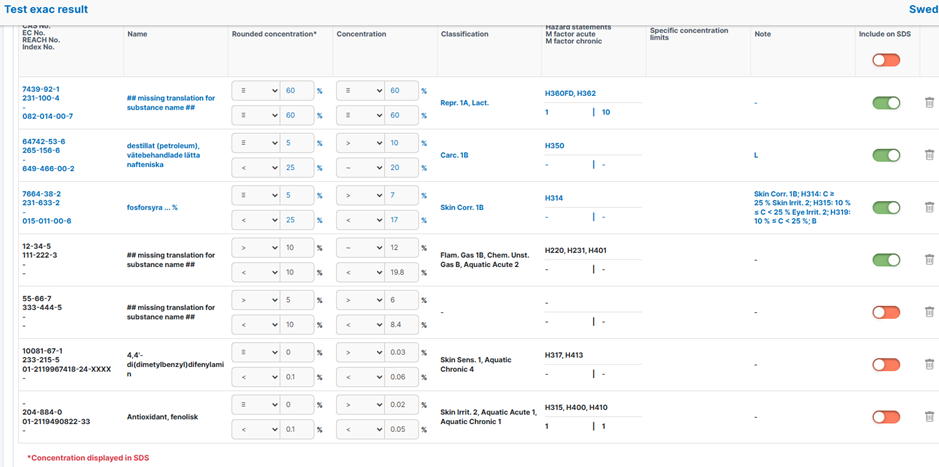
As table is set now, there are several ways to another concentration:
- for less or even: ≤
- for even or greater: ≥
- for exact concentration: 12 – 12
- for identical equality: ≡
Since PCN has higher requirements when reporting the composition, products created from AutoGen will keep all substances instead of keeping only those that are relevant for SDS.
This column contains the checkbox that controls if the substance will be included in the SDS or not. If checked/green, the substance will be visible on the SDS; otherwise, it will only be displayed in iPublisher UI and when making a PCN notification.
Field for Specific concentration limits can be found as a column.
This information will be visible if added to the substance via Substances.
SECTION 4 – 7 and 10
If the product is created in ‘Phrase mode’ you will work with the phrase mode library and add your sentences.
SECTION 8
Table of exposure limits, subsection 8.1
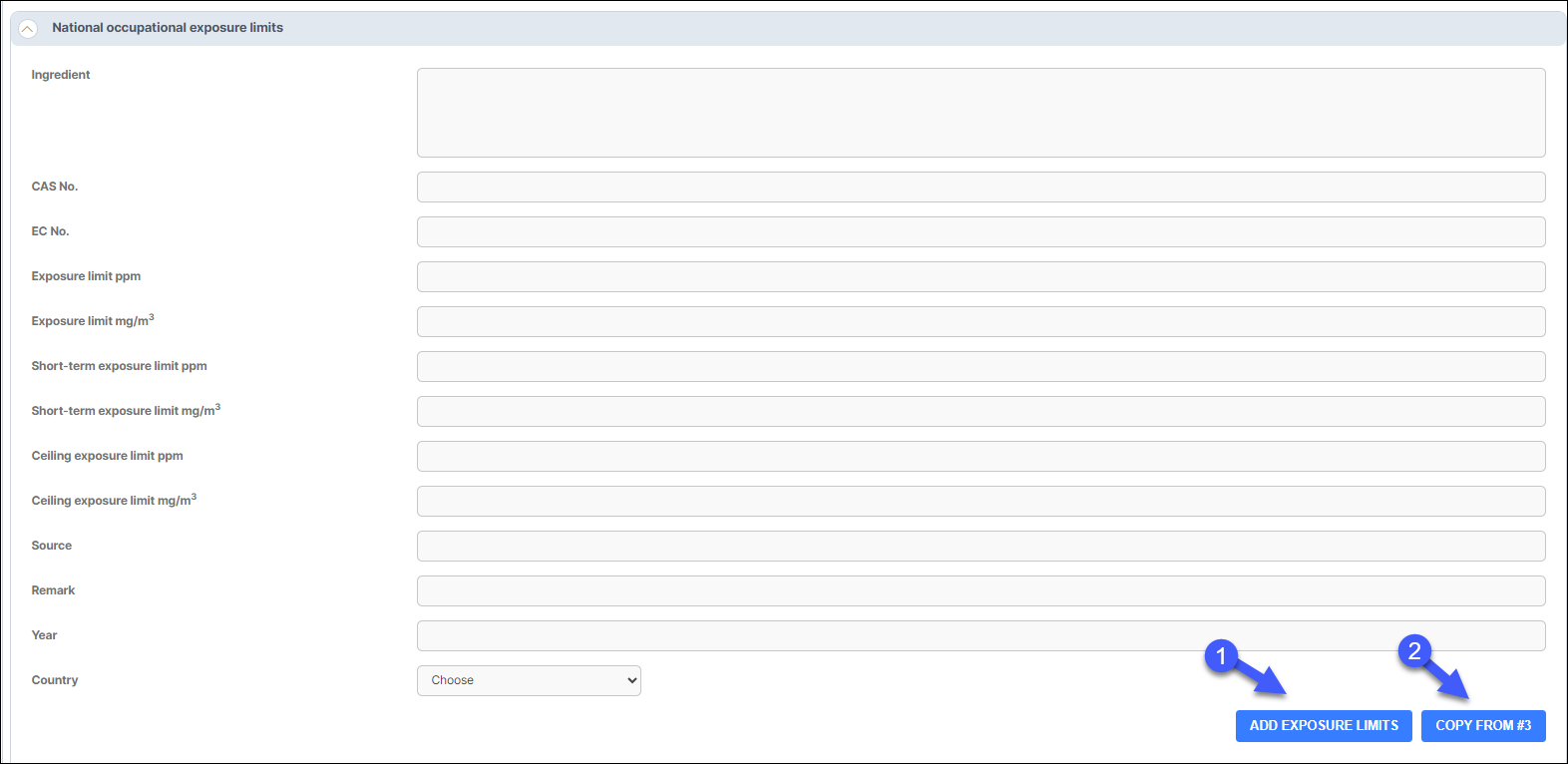
There are two methods to incorporate occupational exposure limits (OELs).
Firstly, click on the 'National Occupational Exposure Limits' headline to expand the form for OEL.
- Manually input OEL values into the form and add them to the table. These values are country-specific, so when publishing SDS in multiple markets, OELs must be added separately for each.
- Alternatively, import OELs for all substances listed in section 3. If no OEL is set at the substance level, the table can be edited to include OEL information. A message will indicate if there is no data available to copy.
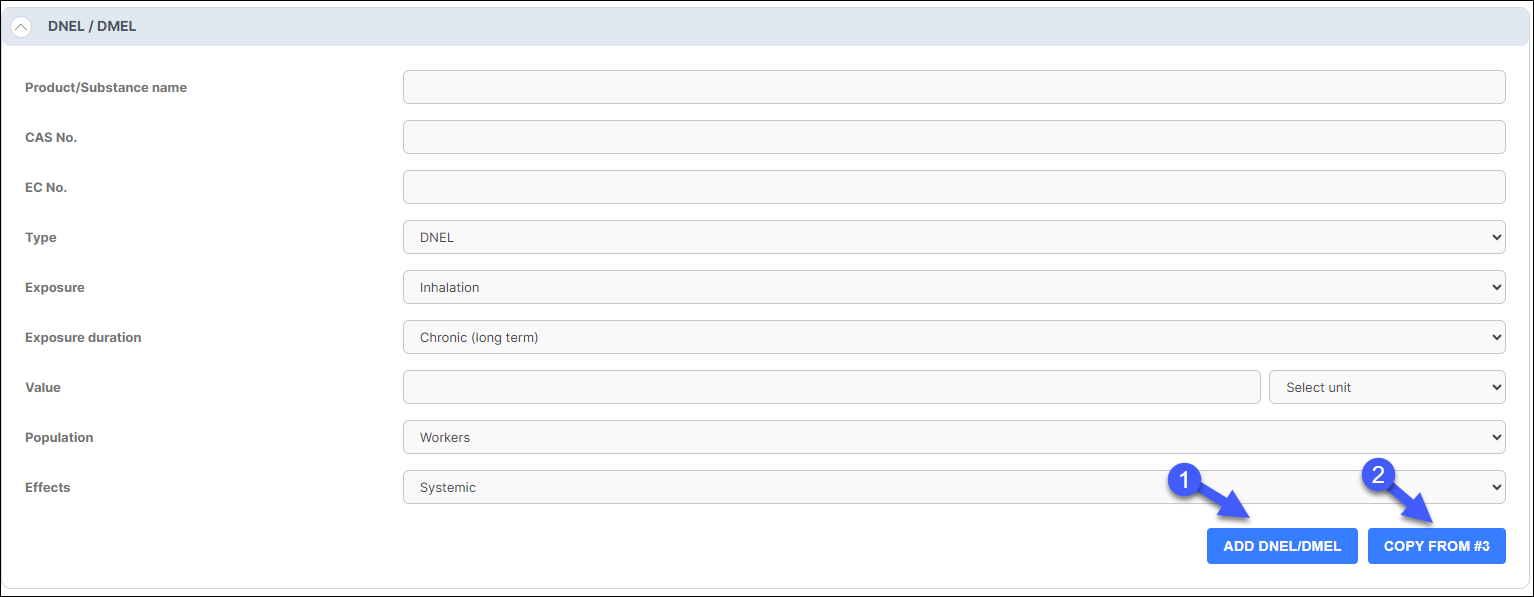
For DNEL/DMEL and PNEC/PEC information: Access the form to add DNEL/DMEL and PNEC/PEC details. There are two ways to do this.
- Manually input the values into the form and then add them to the table. Some fields contain dropdown menus for selection. Use the 'ADD DNEL/DMEL' or 'ADD PNEC/PEC' buttons to include this data.
- Import the information added in section 3. If no information is set at the substance level, the table will be empty. Click on the 'COPY FROM #3' button to populate this table."
If no translation is added for the substance in the specific market, the substance name will be shown in English.
SECTION 9
In section 9 there are 3 types of data entry formats. Those 3 format types are:
- Text (in phrase mode) – e.g. ‘Appearance, Colour’
- Number (accepts only numerical values) – e.g ‘Water solubility’.
- Interval (accepts only numerical values) – e.g. ‘pH value’
Appearance, physical state
Select one of the offered values from dropdown list or choose ‘Other’ and add more detailed explanation in additional text field.
Volatile or foul smell
This is only relevant for the Swedish market. Selecting ‘Yes’ as value should trigger storage restriction in RA.
Kinematic viscosity
Relevant for automatic classification for calculation of Aspiration toxicity.
SECTION 11-12
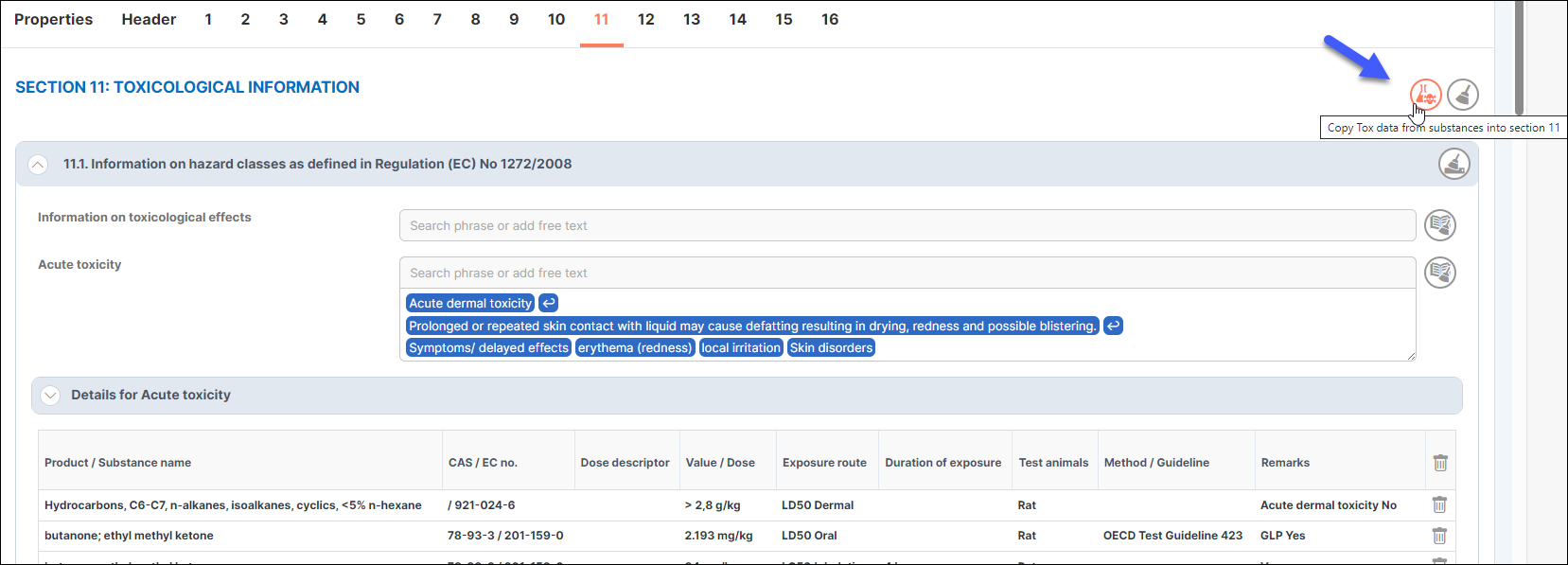
If Tox/Ecotox data exists at the substance level, it can be easily incorporated by selecting the 'Copy tox data from substance into section' button.
If no translation is added for the substance in the specific market, the substance name will be shown in English.
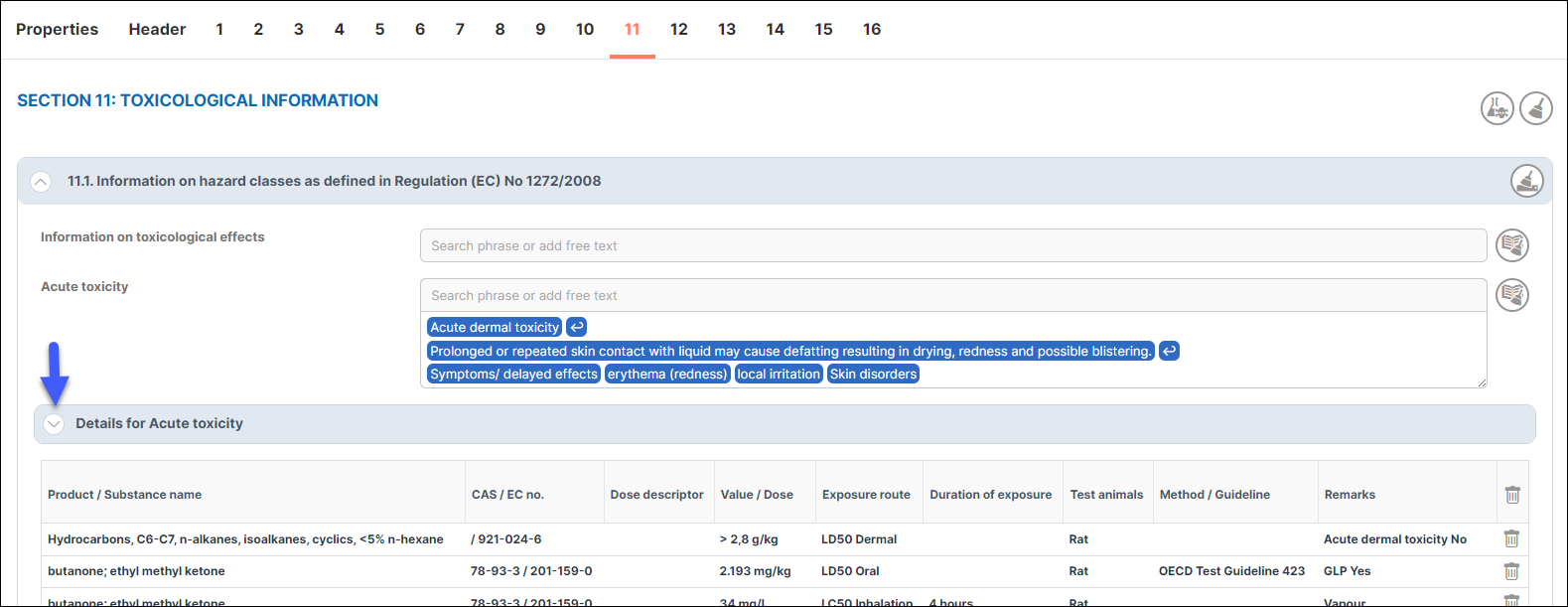
For manual addition, click the arrow next to the title to reveal the fields. Input the necessary data and click 'Add details' to populate the table.
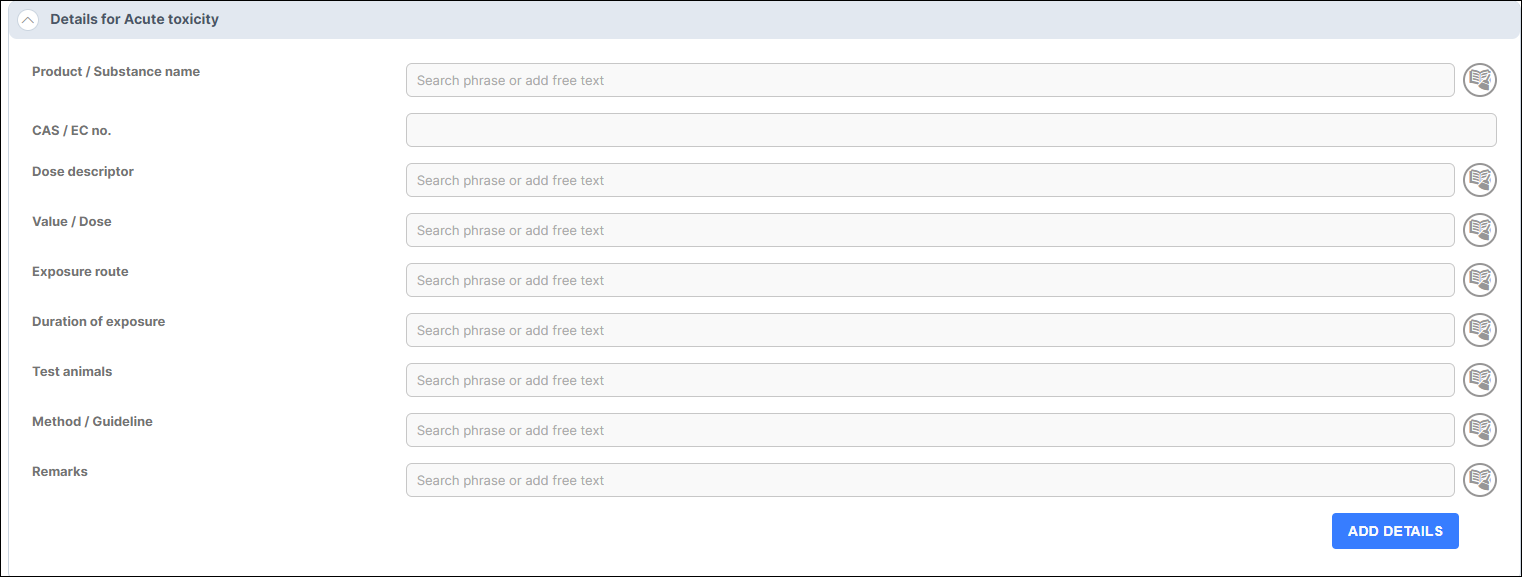
In the 'Other' section (Section 12), users have the option to apply the German Water Hazard Class (WGK) specifically for the German market. Various options are available to choose from. Even if the product isn't intended for the German market, users can still apply this water hazard class by selecting the 'Include German water class for other countries' option when previewing or publishing."
SECTION 13
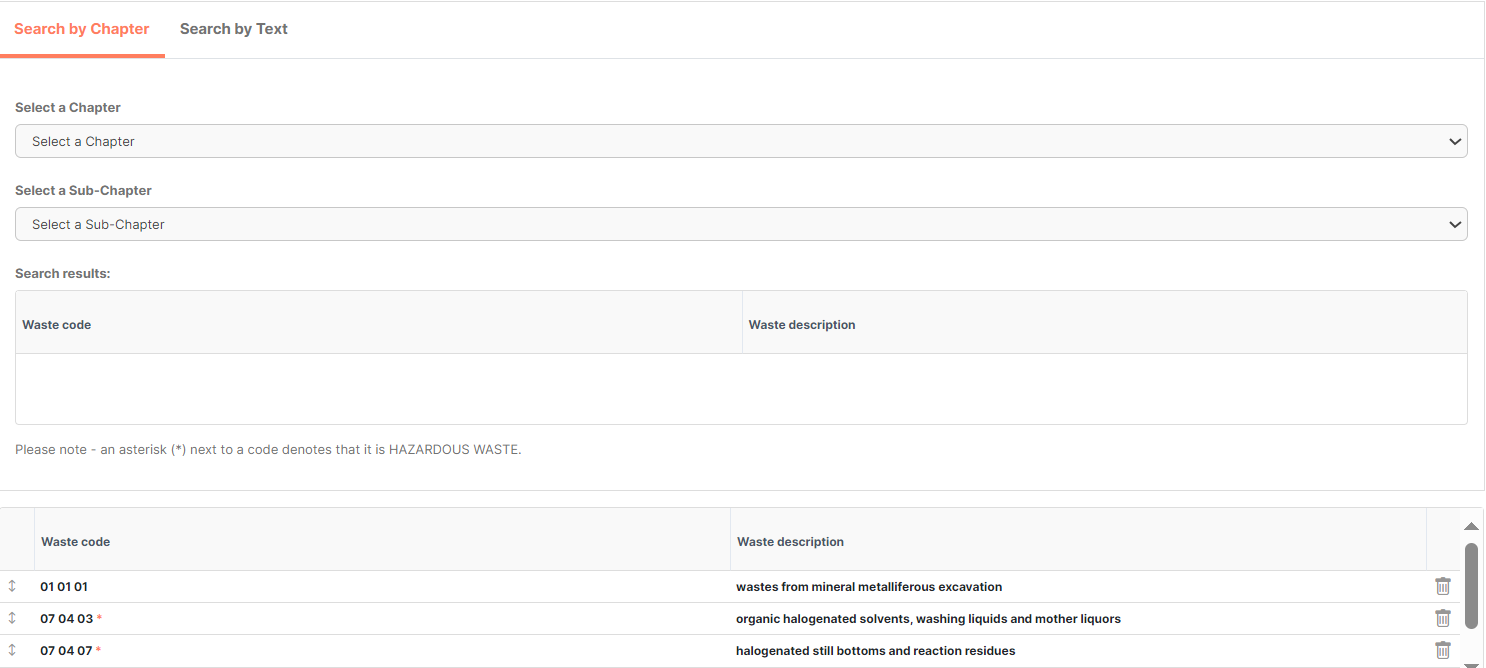
Under section 13 there is a possibility to add waste code from database. Waste code could be searched by chapter and subchapter or by free text.
To the left of the Waste code, you have the drag-and-drop function which will help you to re-order the codes in a east way to the order you prefer.
SECTION 14
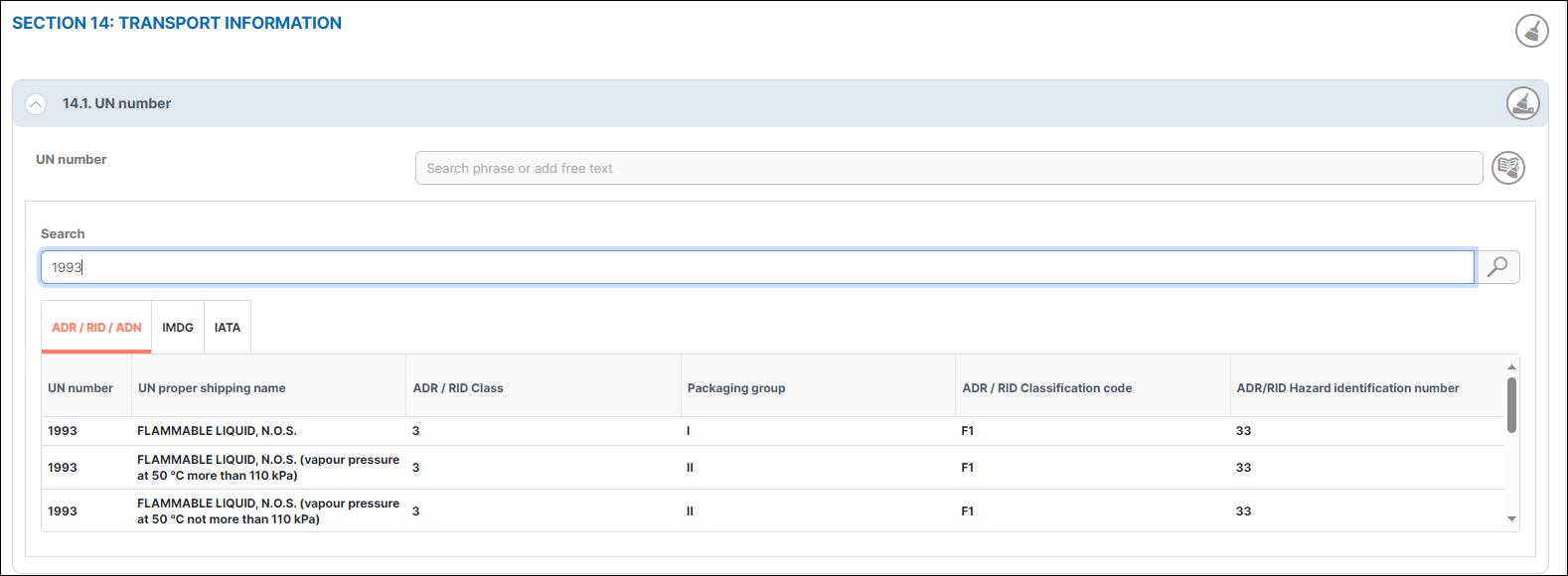
This section allows you to input details related to the 'Transport of Dangerous Goods' for products.
To begin, enter the UN number in the search field and select the relevant one. Below, a table containing names for ADR/RID/AND, IMDG, and IATA will appear. Double-click on the appropriate entry, and all associated data will be displayed in the fields below the section.
SECTION 15
When working in 'Phrase mode' for product creation, you'll utilize the phrase mode library to construct and add your sentences.
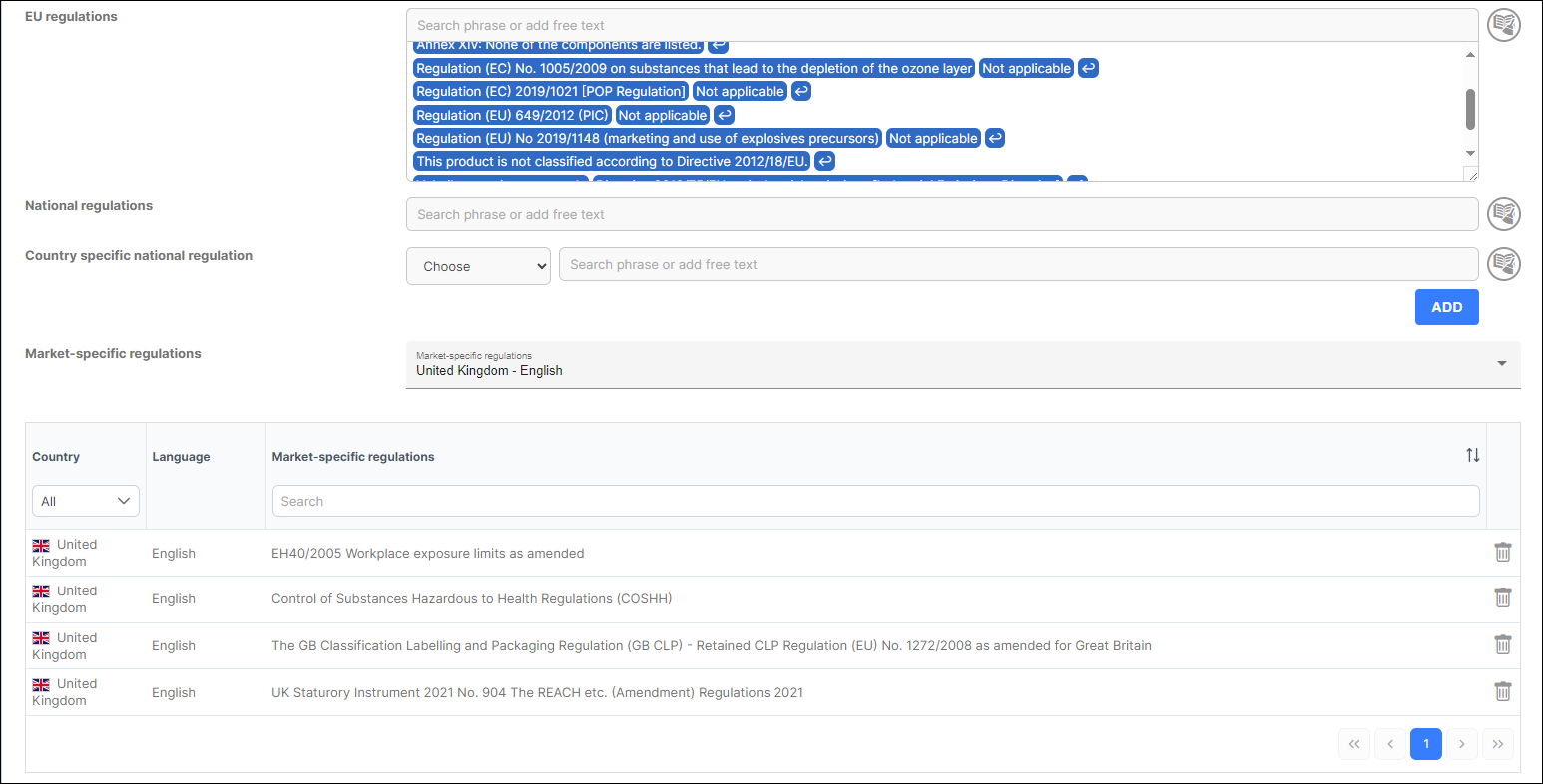
Within the 'Country-Specific National Regulation' section, you can select the country where you intend to publish the product and input the regulations for that country. This can be achieved through the phrase mode or free text option. Notably, these regulations will only appear for the market in which you're publishing the product.
Additionally, under 'Market-Specific Regulations,' a dropdown menu provides access to various current regulations specified for numerous countries.
SECTION 16
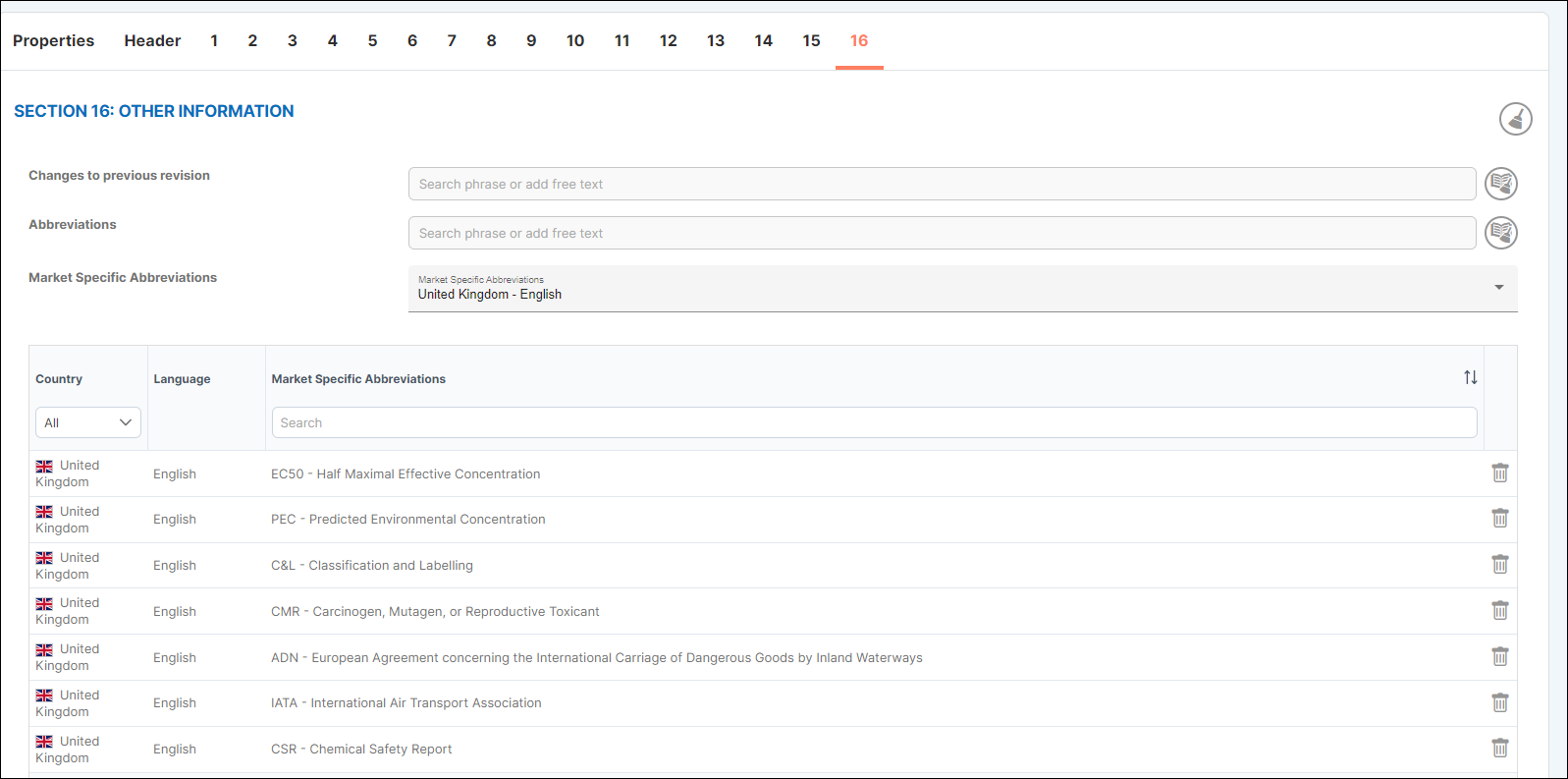
In Section 16, you can provide additional information using either the phrase mode or free text, like the previous sections.
The classification and hazard statements from Section 3 will automatically appear under the phrase meaning.
For 'Market-Specific Abbreviations,' you can easily add them by selecting the country for publication and choosing from the dropdown menu. All listed abbreviations in alphabetical order for the chosen country will populate in the list below.
Preview
This section allows you to preview your product before publishing. It's a great place to ensure everything looks as intended and to spot any missing translations, which will be highlighted in red for easy identification.
Publish
Once you've reviewed your product and are ready to publish, click on the 'Publish' button in the top menu.
Choose the country(s)/language(s) for which you intend to publish your product (this information was set when you created a 'New product'). The selected countries/markets will be displayed on the left.
The button ‘CHECK ALL’ will mark all the countries/languages and the button ‘UNCHECK ALL’ will remove the mark and clear your choices.
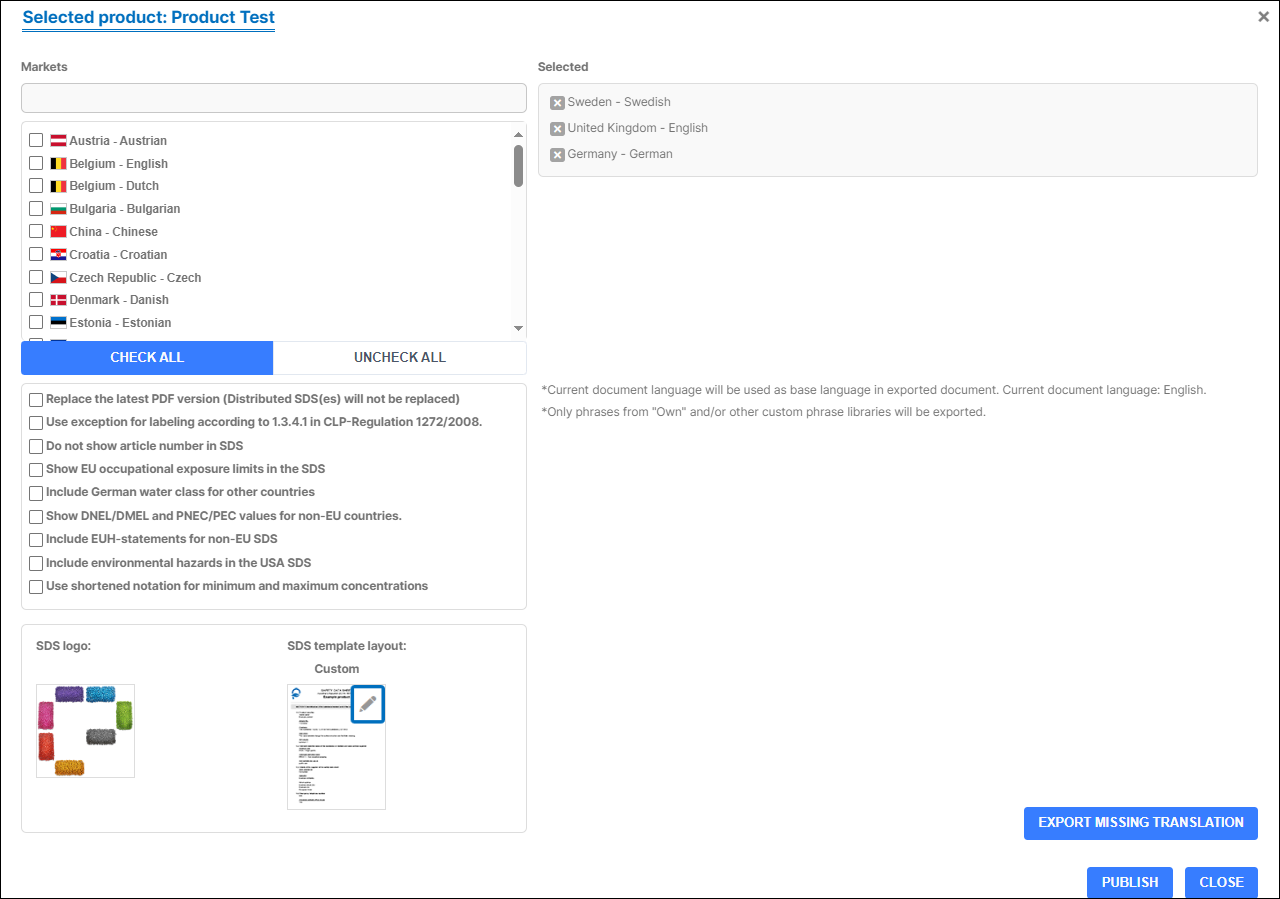
- ‘Replace the latest PDF version’ will not create a new version of your product, you will replace the latest version of your SDS. This can be used if you see a mistake from the latest version and you do not want to create a new version number.
- ‘Use exception for labelling according to 1.3.4.1 in CLP-Regulation 1272/2008’. This defines cases when you can ommit (skip) labeling of a product, even when product is classified as hazardous. When that option is selected section 2.2 will have only phrase: ’This product doesn't require labelling according to ...’, without any pictogram, H- or P-statement in section 2.2.
CLP regulation statement: ’’Metals in massive form, alloys, mixtures containing polymers and mixtures containing elastomers do not require a label according to this Annex, if they do not present a hazard to human health by inhalation, ingestion or contact with skin or to the aquatic environment in the form in which they are placed on the market, although classified as hazardous in accordance with the criteria of this Annex.’’
- ‘Do not show article number in SDS’. Will hide the product number in the SDS.
- ’Show EU occupational ecposure limits in the SDS’. Option to include EU OEL, besides the OEL for the market you are publishing.
- ’Include German water class for other countries’. This is only option for German SDS, but if user wants to include this option, it can be done by checking the button.
- ’Show DNEL/DMEL and PNEC/PEC values for non-EU countries’. If publishing for non EU countries, this box should be checked.
- ’Include EUH-statements for non-EU SDS’.
- ’Include environmental hazards in the USA SDS’. Specially for USA markets.
- ’Use shortened notation for minimum and maximum concentrations’.
Export missing translation
If there are missing translations, you can export them by clicking the 'Export missing translation' button. This action generates an Excel document containing missing phrases from the selected countries/languages.
The current document language, which is English in this case, serves as the base language for the exported document.
Only phrases from 'Own' and/or other custom phrase libraries will be included in the export.
After reviewing the product, ensuring the selected options are accurate and checking translations for the desired markets, your product is ready for publishing.
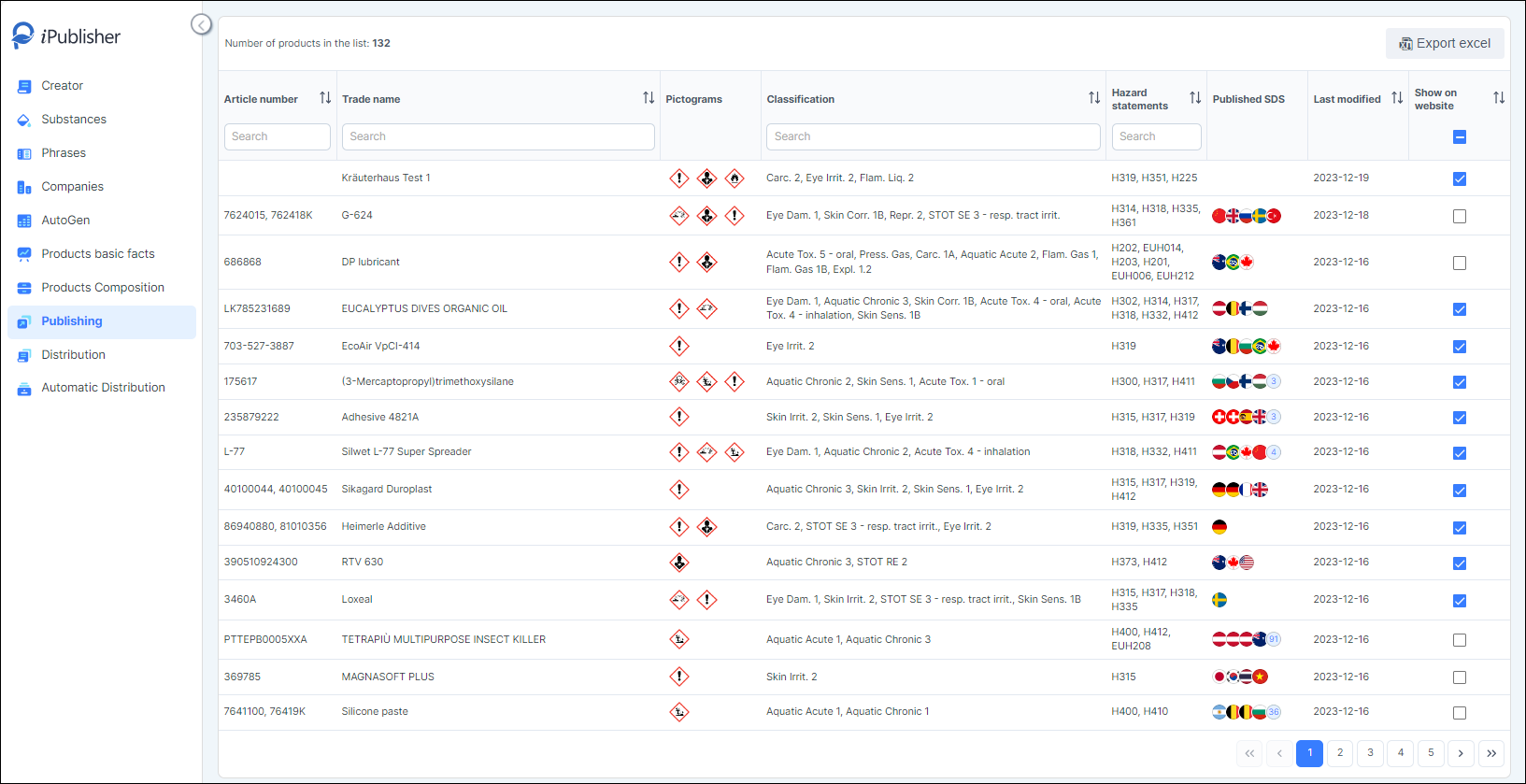
In the 'PUBLISHING' list, you'll find the latest SDS that have been created and published in both 'Creator' and 'AutoGen'. To find a specific product, use the search field by entering the article number or trade name. The 'Published SDS' column displays each country/market flag where the products have been published. Click on the trade name to access and view the product.
Basic product information
When you access the product, you'll find a detailed overview of its specific information. Using the top menu, you can select:
• Preview SDS
• Publish - to publish the product in other languages
• Label - to create a label
• eSDS - for creating an Exposure Scenario Safety Data Sheet
The product overview includes details such as: Name and designation, pictograms and pictures for personal and protective equipment, classification, hazard statements, precautionary statements, restriction lists for ingredients, composition, companies, OEL.
Copy/update other products
After you have created and saved your new product, you will have the possibility to copy your product and use it to update other products by clicking the button ‘Copy/update other products’ on the top of the page.

It is useful when creating similar products, like different kinds of paints for example, where the difference will only be in some sections. In that case you do not have to create a new empty product every time but will be able to copy previously created products and then edit it to fit your needs.
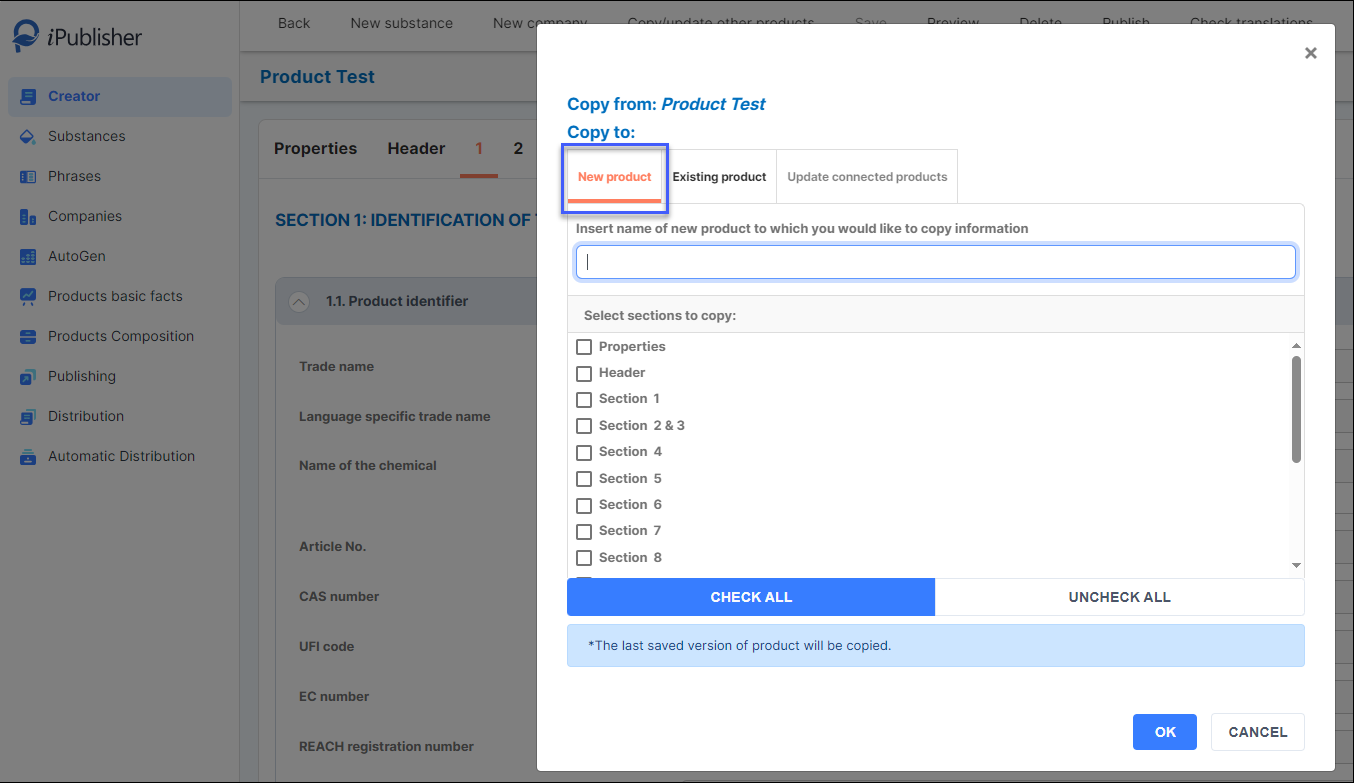
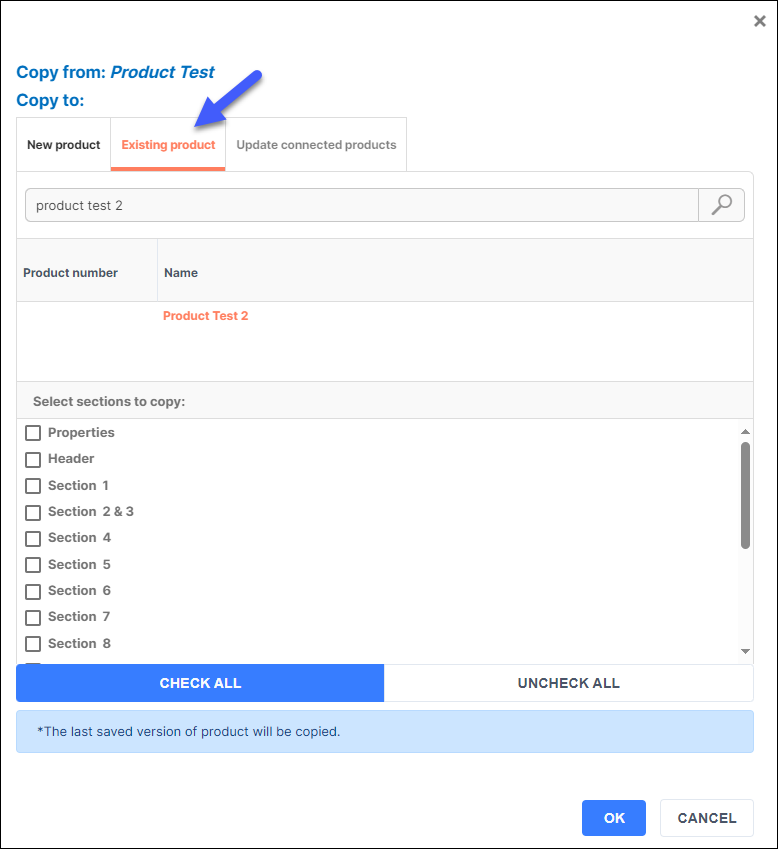
At the top of the popup window that appears after you have clicked on 'Copy/update other products' you can see 'Copy from:' and 'Copy to:' this is to make it clear which product you are copying from.
Copy data to a new product
As shown in the picture below, you can insert the name of your ‘New product’ to which you would like to copy data to and then select which sections you want to copy. All sections can be selected at once or you can choose individual sections you want to select and copy data from.
Copy data to an existing product
iPublisher also offers the possibility to copy product information to an ‘Existing product’. It can be done simply by choosing an existing product from the search menu, click on the product you want to copy to and marking the sections you want to copy. By clicking OK all marked sections will be copied into existing product.
Connect and update connected products
You also have the option to connect products. One product will act as a base product and then apply and copy any updates on that product to connected products that are similar. Using this function, you are able to add multiple products to update at the same time.
After doing this, the products will stay connected until you remove the connection. This is a good option if you know you will update the products regularly, so you won't have to search for them every time.
This functionality is located under Properties.
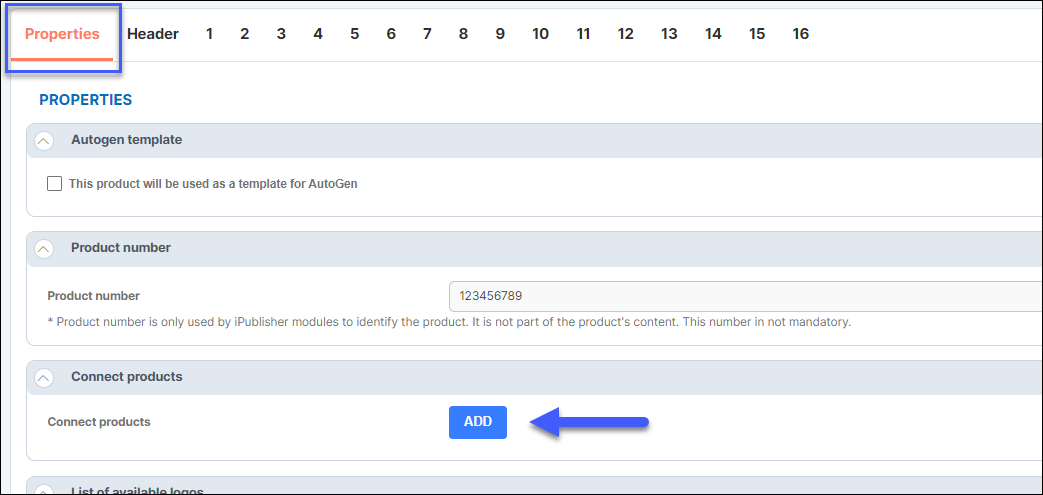
Click Add to begin connecting your products.
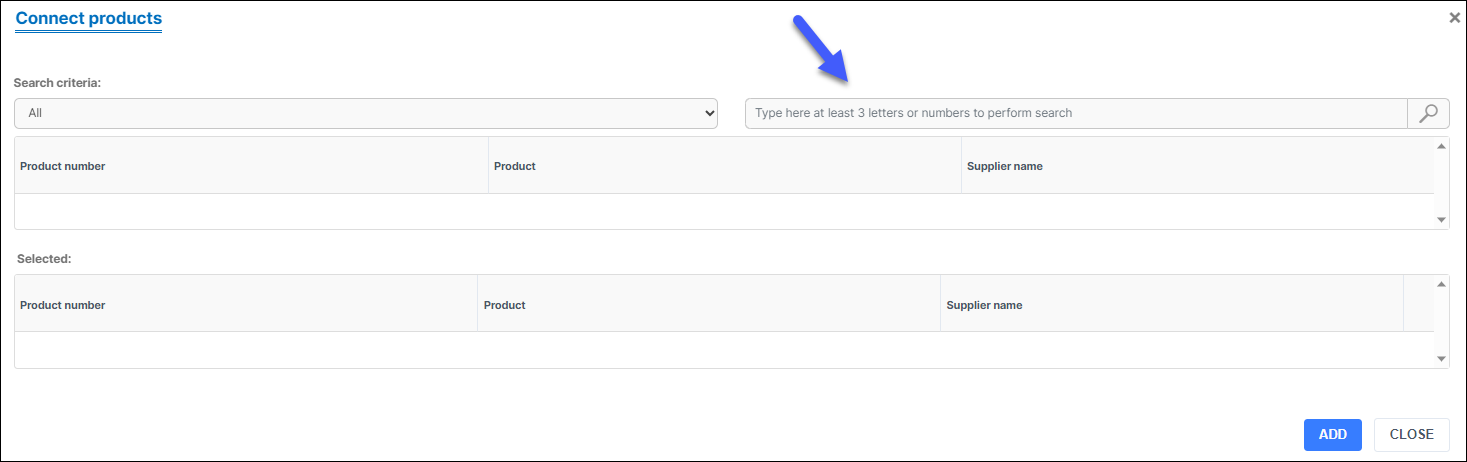
Search for your products that are going to be connected, double click on the product and make sure it is in the selected product list. Click Add when you are done and then Close.
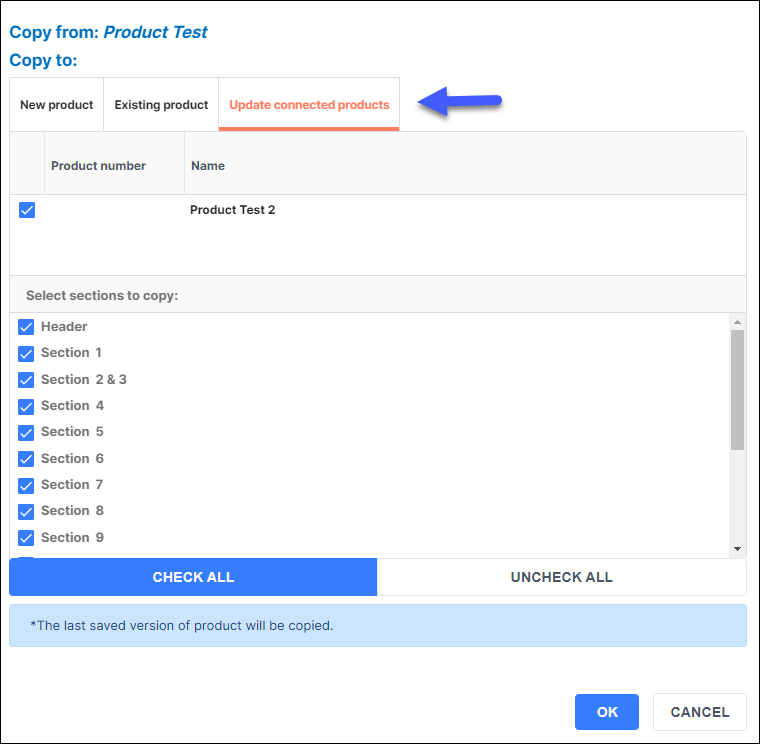
After your product(s) are connected, click Save and then Copy/update other products.

Click on the tab 'Update connected products' and choose which sections that are going to be updated to your connected product(s). Select which section you want to copy data from and then click OK and your product(s) will now be updated.