TABLE OF CONTENTS
- How to make a template in AutoGen
- Raw material & SDS update
- Creating a recipe for Autogen
- New job
- Active job - Starting a job
- Job log
- Fix list
- Download button
AutoGen is a tool designed for automatic calculation of product classification based on SDS (Safety Data Sheet) templates and raw materials. It streamlines the process of creating fully professional SDS for groups of similar products, such as paint, oil, glue, or rubber.
Users can create templates for AutoGen and use them to generate classifications for products, ensuring consistency across various sections while allowing customization for specific details.
The tool utilizes raw material data and recipes to automatically calculate product classifications, aiding in the efficient creation of accurate and compliant SDS documents. AutoGen only calculates classified substances.
How to make a template in AutoGen
A template is a simple product that contains all required data. AutoGen will calculate classification based on the raw materials and the recipe, but all other sections should be fulfilled before creating the AutoGen job. Creation of templates is the first step for making the fully professional SDS for the group of the products.
It is created for similar products (paint, oil, glue, rubber...) where we suppose to have the same content in all other sections besides 1 (Trade name and article number), 2 and 3.
You can create a template in Creator by checking the box ‘This product will be used as a template for Autogen’, which is located under Properties.
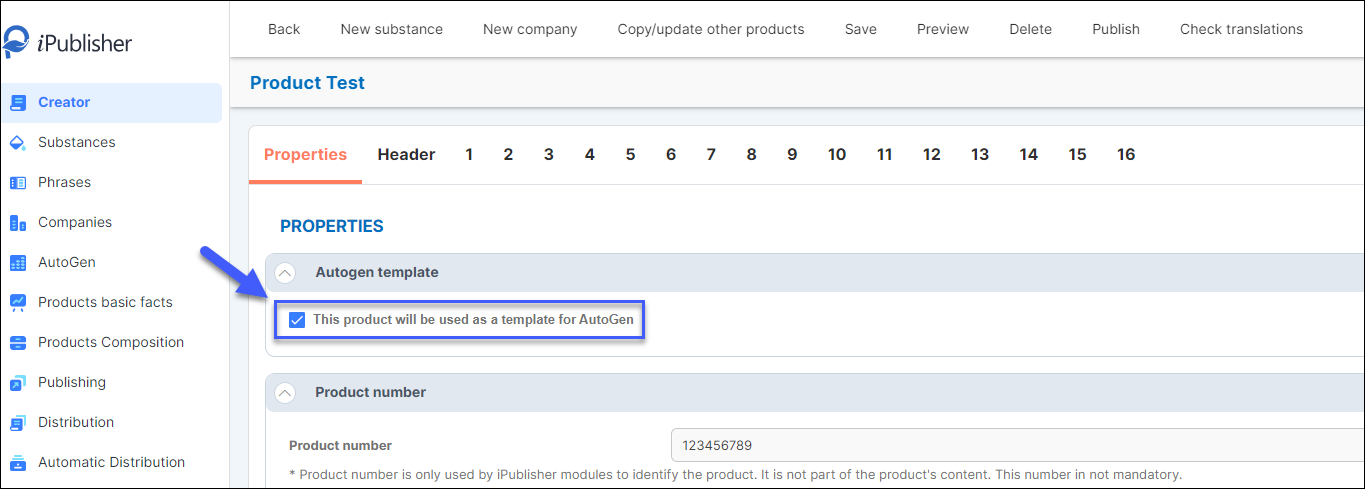
You can create many different templates to suit your companies needs.
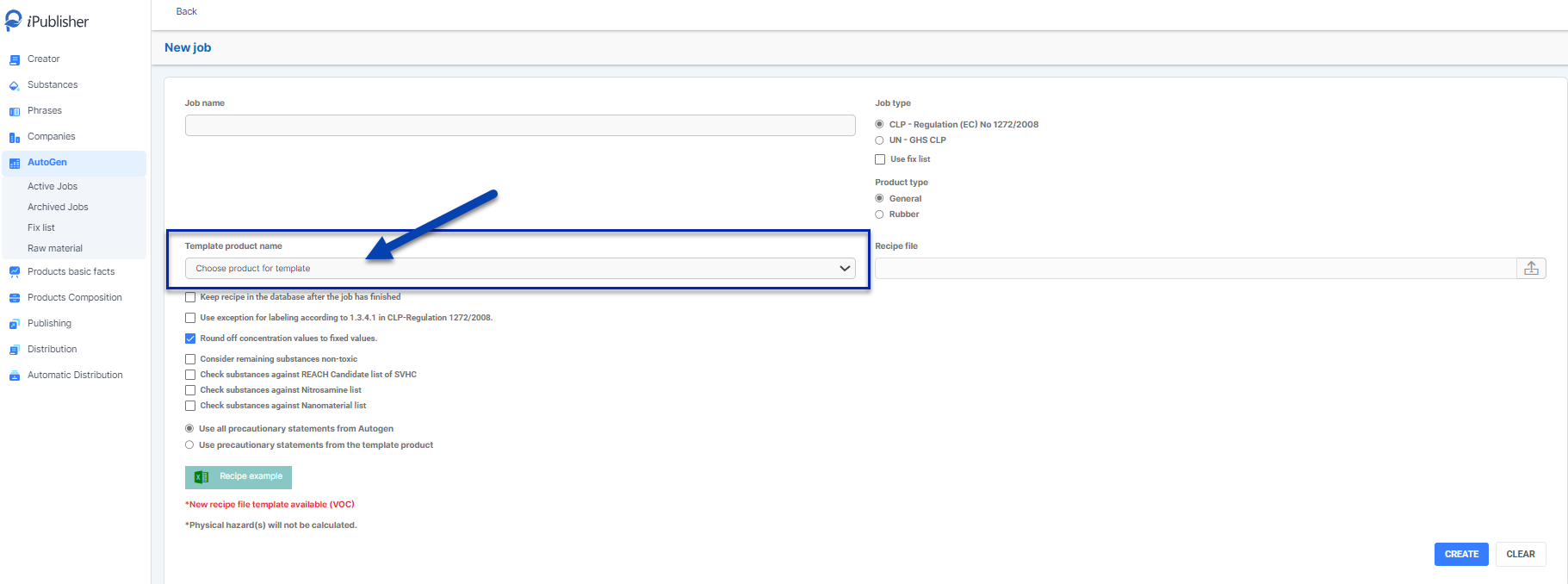
You can use your Autogen template when creating a new job by clicking on the dropdown menu called Template product name and then click on your template
Raw material & SDS update
Raw materials are used in Autogen, the tool for automatic calculation of the classification by the composition of a product. The SDSs of raw materials from suppliers are digitalized through our internal tools and they are inventoried in iPublisher for user’s recipe.
The list of the raw materials must be kept updated, otherwise, resulting product might have wrong composition and/or classification.
SDS update
We ensure that you consistently have access to up-to-date SDS's (Safety Data Sheets) within the iChemistry platform. Here is some information on how the SDS service works in iChemistry.
The standard revision of new SDS is performed every three years. If we receive the information that the current SDS has been updated with newer releases in the meantime, it will be added to iChemistry.
We guarantee that for every SDS you have inventoried in iChemistry, no more than 36 months pass from the date of publication, until we make the next control of updates.
Example: If an SDS has the revision date 09-09-2021, is the next check automatically set for the 09-09-2024.
If an SDS is older than three years, a new revision is performed annually. In other words, the supplier is contacted once a year and check whether the SDS has been updated.
If the SDS is not updated at the next check, it gets flagged as "old but valid" and the next check will be set to in one year.
If you need a more frequent guaranteed update check for all products, you are welcome to contact your account manager at Intersolia to adjust your agreement regarding our SDS service.
The raw materials can be found under the section ‘Autogen > Raw materials’ from the main menu.
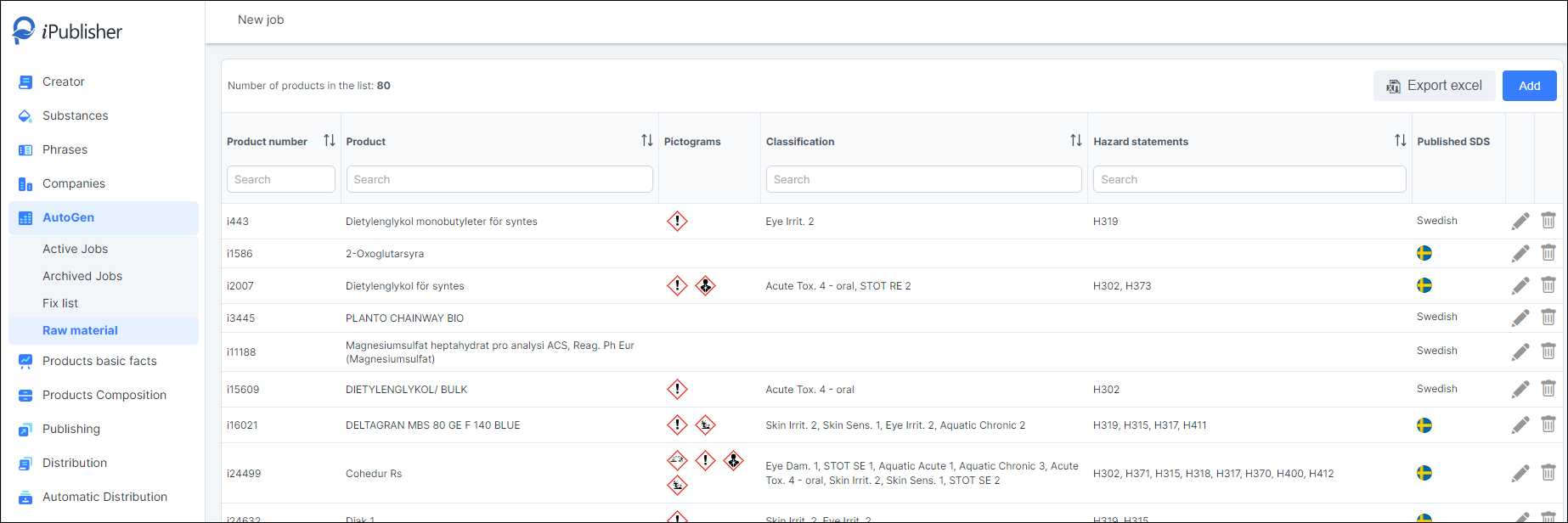
Here you can export all your raw materials to an excel file or add new ones. You can search within the columns to filter the list before exporting to Excel to export a filtered list.
When you want to add a new raw material, that can be done simply by clicking the button ‘Add’ on the top of the page. You will then get a pop-up window where you can search the desired product and market.
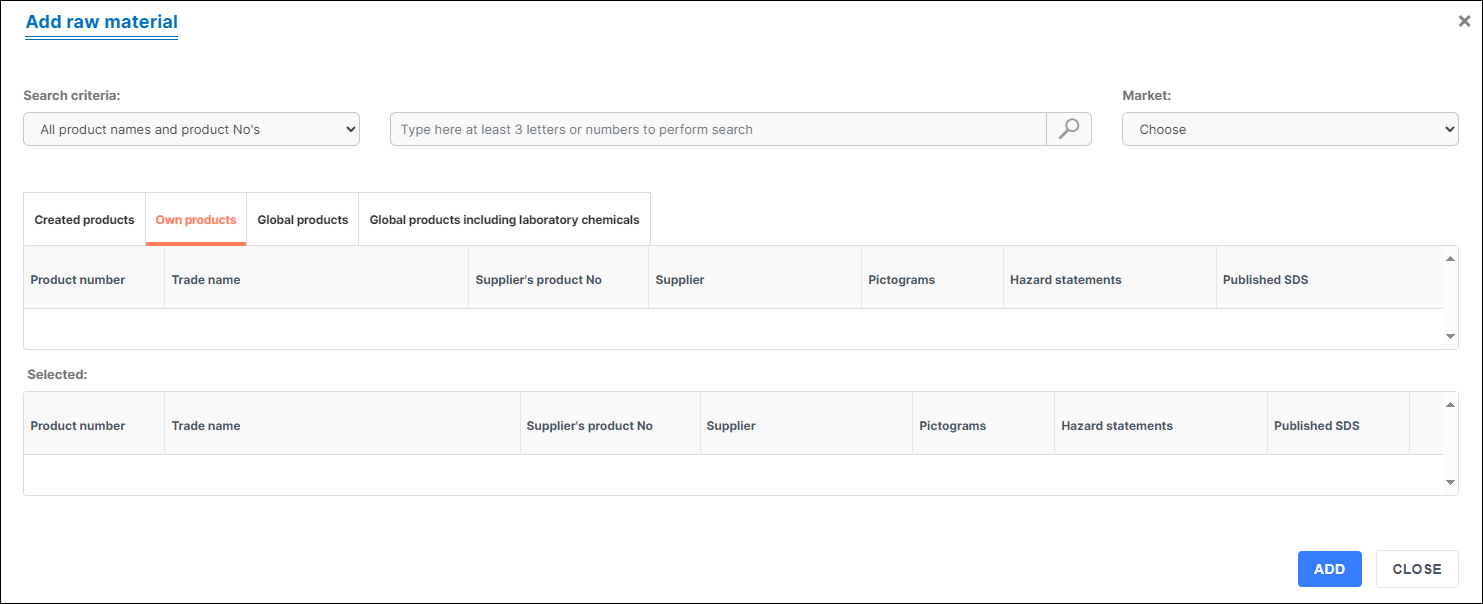
Users have the possibility to choose the criteria for search (by Product number, Trade name, Supplier or Suppliers product number) and to choose the database: ‘Created products’ database, ‘Own products’ customized database for the client, ‘Global products’ database and ‘Global products including laboratory chemicals’.
By choosing the database you are narrowing the search criteria. When the product is identified, by double clicking it will be added to the list of raw materials.
Creating a recipe for Autogen
Use the template for the recipe file from Autogen. You can download the recipe example file by clicking on Autogen > New Job and then on the ‘Recipe example-button’.

Columns in the recipe file should not be changed, otherwise AutoGen will not be able to use the document.

There are two sheets in the template for entering data ’Product summary’ and ’Raw Material summary’ and two sheets explaining the different columns and mandatory fields.
Product Summary – This is the sheet of the Excel file where you enter your product information. Product Name is the only mandatory field.

Raw Material summary -This is the sheet where you will enter relevant information about your raw materials.
In the column for ‘Product name’ you need to use the same name that you used in ’Product summary’, so AutoGen will match the raw material number to the product you want to create.
Add your raw material number (See Raw material for more info). Compound(s) concentration(s) (%) does not need to be summed up to 100% for each product created. Summary of raw material(s) concentration(s) can vary from 0-100%.
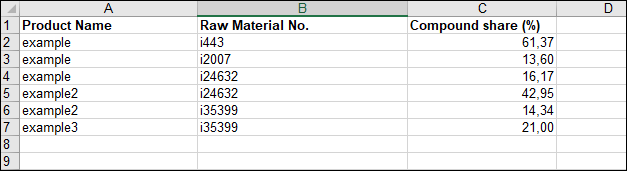
Product Number / Raw Material No.
This is an internal iPublisher number for product identification. It is used if a product will be used as a raw material (Autogen) or in/by the Automatic Distribution module, it is not apart of SDS content.
To create one or more products using recipe, a job must be created. Use the template for the recipe file from AutoGen. Columns in the recipe file should not be changed, otherwise AutoGen will not be able to use the document.
New job
To create one or more products using recipe, a job must be created. Use the template for the recipe file from AutoGen. Columns in the recipe file should not be changed, otherwise AutoGen will not be able to use the document.
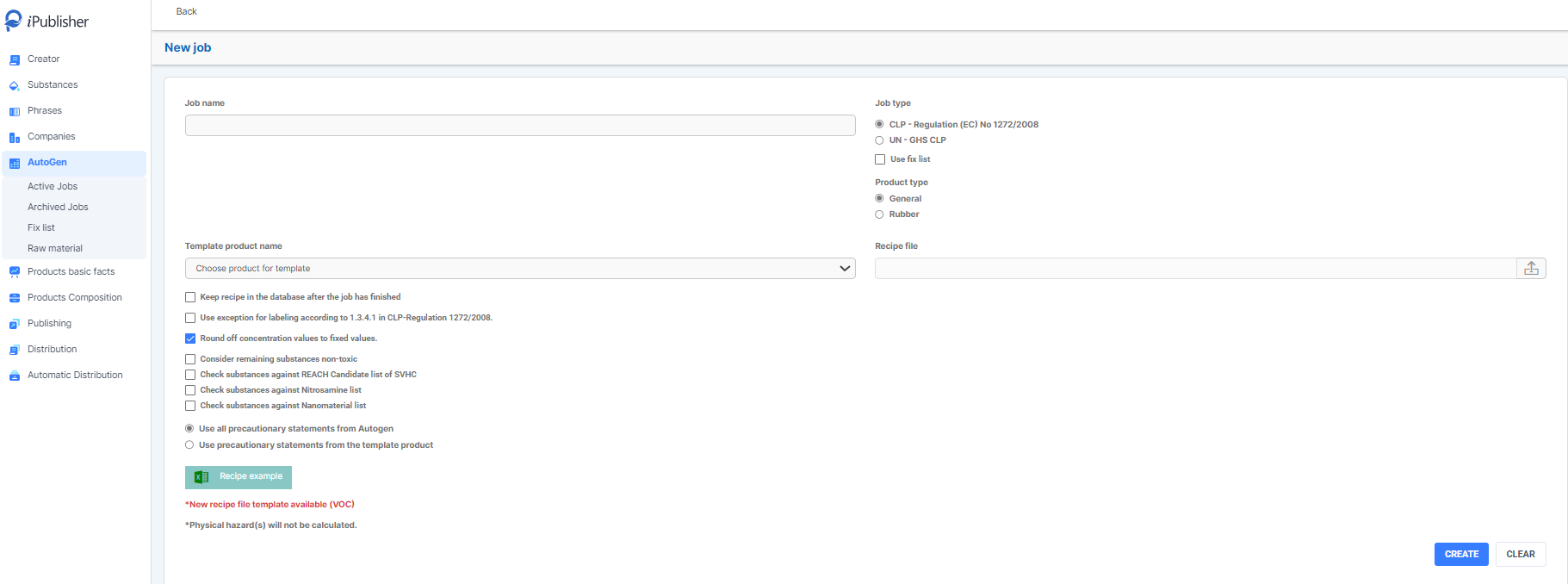
Steps in the creation of the new job:
- Name the job – it should reflect the products which would be created, for easier identification.
- Select a suitable job type
- Product creation – CLP – Regulation (EC) No 1272/2008
- Product creation – UN – GHS CLP Regulation
- Use fix list – override concentration/classification for specific raw material
- Template product name – select appropriate template for the product
- Recipe file – upload pre-filled recipe file. Follow instructions given in example recipe file. For raw materials with multiple article numbers add them as stated in the list.
Additional options:
- Keep recipe in the database after the job has finished – after the job is completed it will stay on the Active job list.
- Use exception for labelling according to 1.3.4.1 in CLP-Regulation 1272/2008. – this info will appear in the SDS. Use this option only if it is applicable for the products that will be created.
- Round off concentration values to fixed values. – this is selected by default, and it will result that substance concentration will be rounded and then set to predefine values. This gives wider range for substances listed in section 3.
- Check substances from #3 (product) against REACH Candidate list of SVHC (restriction list)
When creating a job for the UK market, Autogen performs default SVHC check based on UK Candidate restriction list criteria, if the existing Candidate list checkbox is checked.If one substance or more from ECHA’S candidate list is used in a product during an Autogen job it will automatically trigger and apply a default phrase in section #15 Other regulations, limitations and legal regulations
Phrase: This product contains SVHC substance: {substance name 1}({CAS no 1. or EC no. 1}), {substance name 2}({CAS no 2. or EC no. 2})
Source: https://echa.europa.eu/sv/candidate-list-table
Check substances from #3 (product) against Nitrosamine list
If one or more substances contains Nitrosamine it will automatically trigger and apply a default phrase in section #10.3 Possibility of hazardous reactions.
Phrase: This product may release nitrosamine.
List of substances:
N-Nitrosodimethylamine (NDMA) 62-75-9
N-Nitrosodiethylamine (NDEA) 55-18-5
N-Nitrosodipropylamine (NDPA) 621-64-7
N-Nitrosodi-n-butylamine (NDBA) 614-00-6
N-Nitrosopyrrolidine (NPYR) 930-55-2
N-Nitrosopiperidine (NPIP) 131-75-3
N-Nitrosomorpholine (NMOR) 62759-92-0
N-Nitroso-N-methylurea (NMU) 59-89-2
N-Nitrosodiethanolamine (NDELA) 684-93-5
N-Nitrosomethylamine (NMA) 75-52-5Check substances from #3 (product) against Nanomaterial list
If one or more substances contains Nanomaterials it will automatically trigger and apply a default phrase in section #1.1 Nanoform
Phrase: This product may contain nanomaterial.
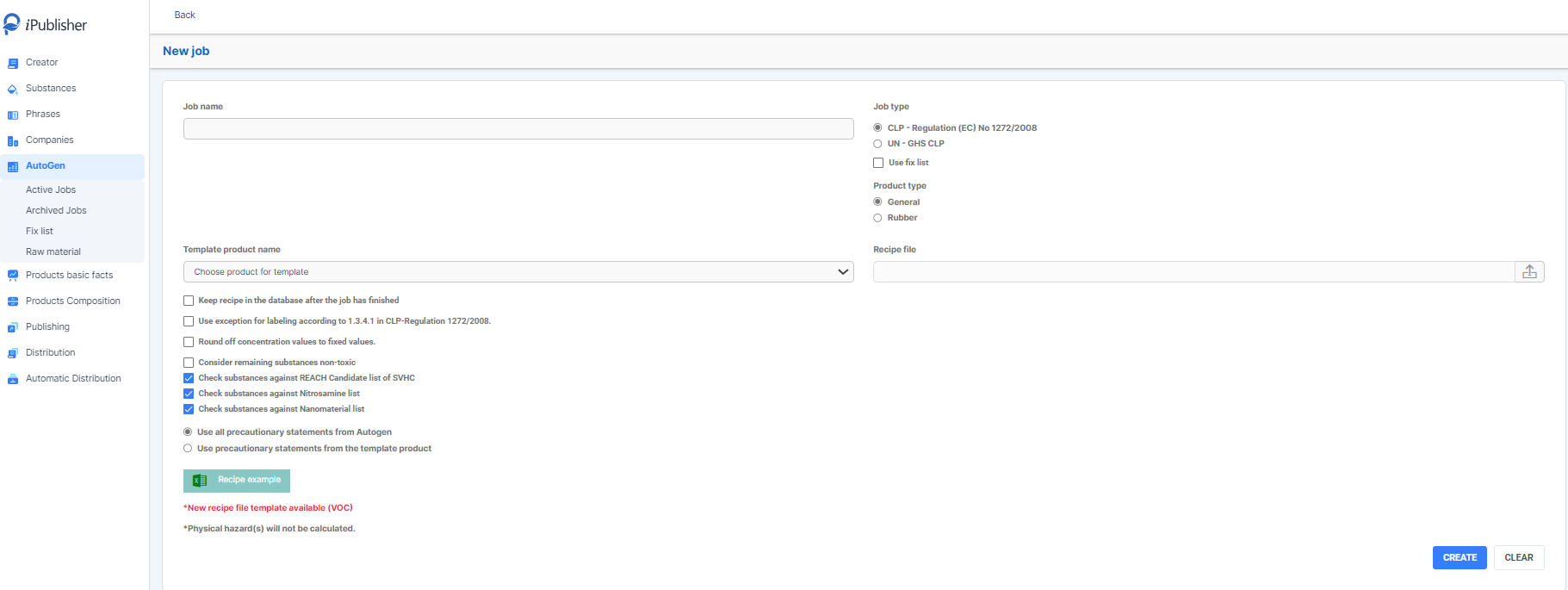
Precautionary statements options:
- Use all precautionary statements from AutoGen – each calculated hazard class comes with a set of precautionary statements. They will be added for each hazard category.
- Use precautionary statements from the template product – a template should be used for family/group of products. Precautionary statements can also be set.
Additional information:
*New recipe file template available (VOC) – please download the newest recipe file template
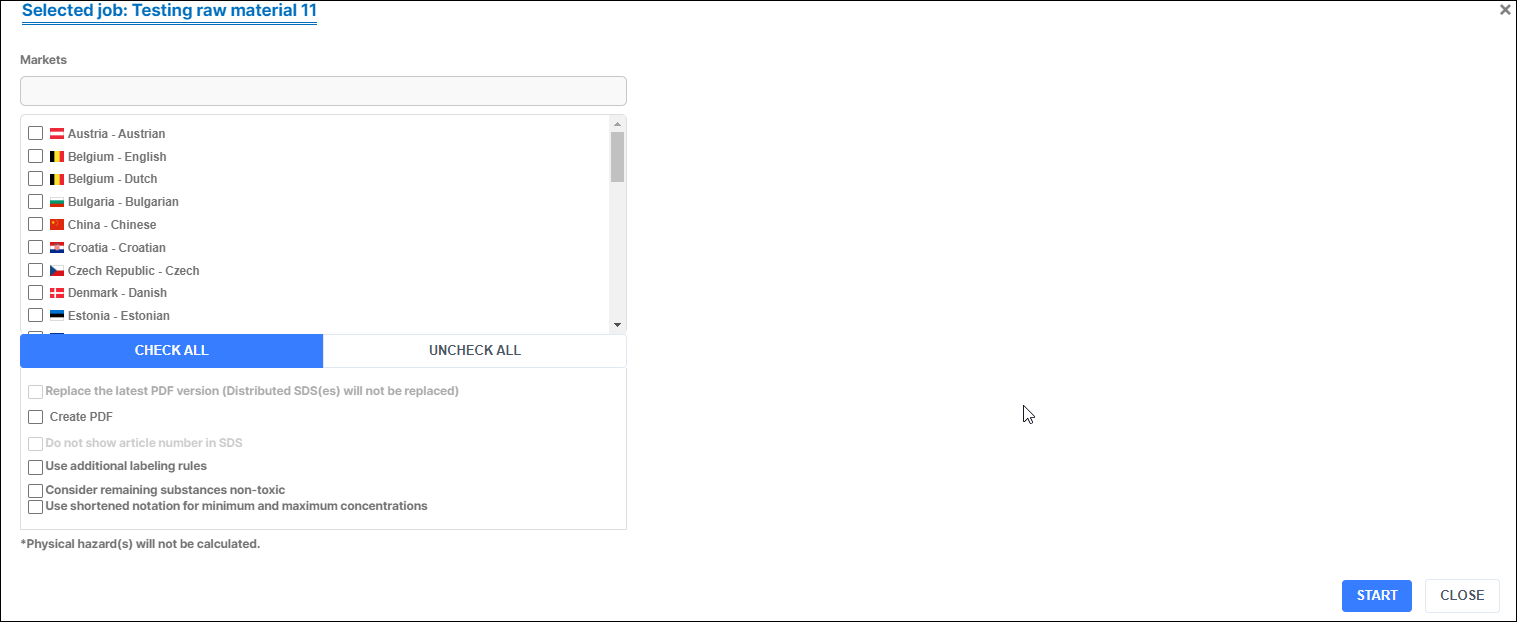
*Physical hazard(s) will not be calculated.
Viscosity Kinematic (mm2/sec at 40C) - The value will be added in the dedicated field in #9.1 ("Kinematic viscosity"). This value will be used as the parameter for the calculation of the Aspiration hazard. Only add a numeric value.
Active job - Starting a job
To run a AutoGen job you need to go to “Active Jobs”. Here you will see a list with jobs that have been created. To start a job, you need to find it in the list, and this you can do easily by searching or sort by status.
- Click on the start icon to start your job.

- A new dialog will open where you could select markets for the products that will be created. If all the phrases are translated for selected languages it is possible to create pdf documents at this point.
Start multiple jobs
Instead of waiting for one job to be done you can create a que and run Autogen jobs at the same time.
1. Go to your Active jobs
2. Click on the Start icon and choose your market.
3. Do the same at the second job you want to run.
4. Now the jobs are running at the same time. When the first has finished the second will start automatically.
5. When both/all jobs are done the green arrow will be visible.
Job log
After job is finished it is advisable to read job log. This is especially important if the job is incomplete or failed. In this case it would be impossible to rerun the job if log is not read. Check all the warnings and try to remove all the obstacles before you rerun the job

Completed jobs
You can find your Autogen created product under ’Publishing’.
Incomplete jobs
In case job is incomplete, check the log for warnings. After following up the warnings, if it’s a case where they will not cause any issue with created product user may accept warnings. Job will change status from incomplete to Ready/Done.
Archive job
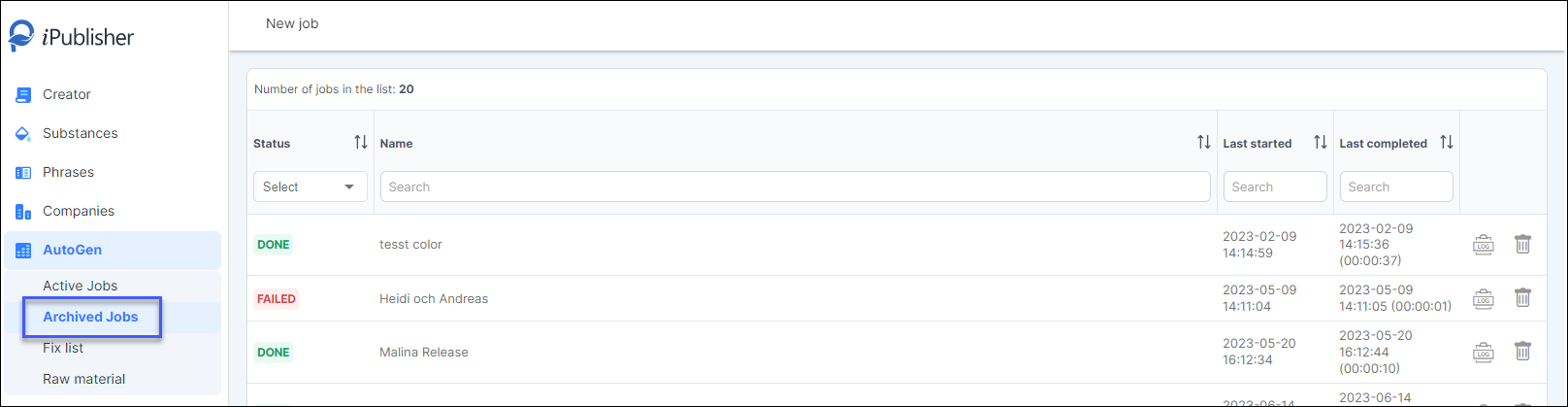
For jobs that will not be kept in database after completion will appear in Archive job list.
Archived jobs include a log for the completed job where you can review any errors or other useful information.
Fix list
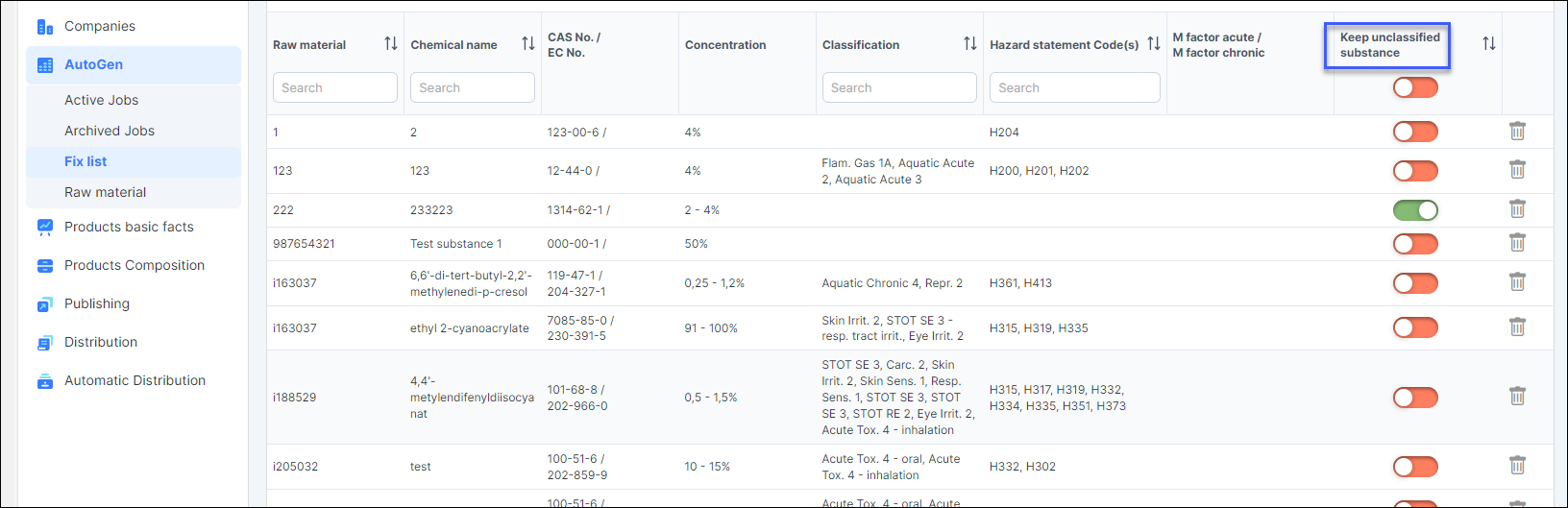
Condition to have the raw material in the fixlist: When creating a job, the fixlist button must be marked.
Fix list is used to override substance information on specific raw material. If there is any reason that data on substances in raw materials is not correct, download fix list, fill appropriate sections (state raw material, state substance, define fix concentration or range and classification and H-statements.
Download button
When ready to commit changes to your substances, begin by downloading the instruction file that includes two tabs. The first tab of the excel sheet contains instructions on how to insert correct hazard statements and classification for Autogen to detect your changes.
Second tab is where you insert your information such as Raw material, chemical name, CAS-number, concentration, classification, and M-factor.
After the desired information is inserted simply upload the excel by using the upload button.
Search for a raw material and change the substance directly without Excel.
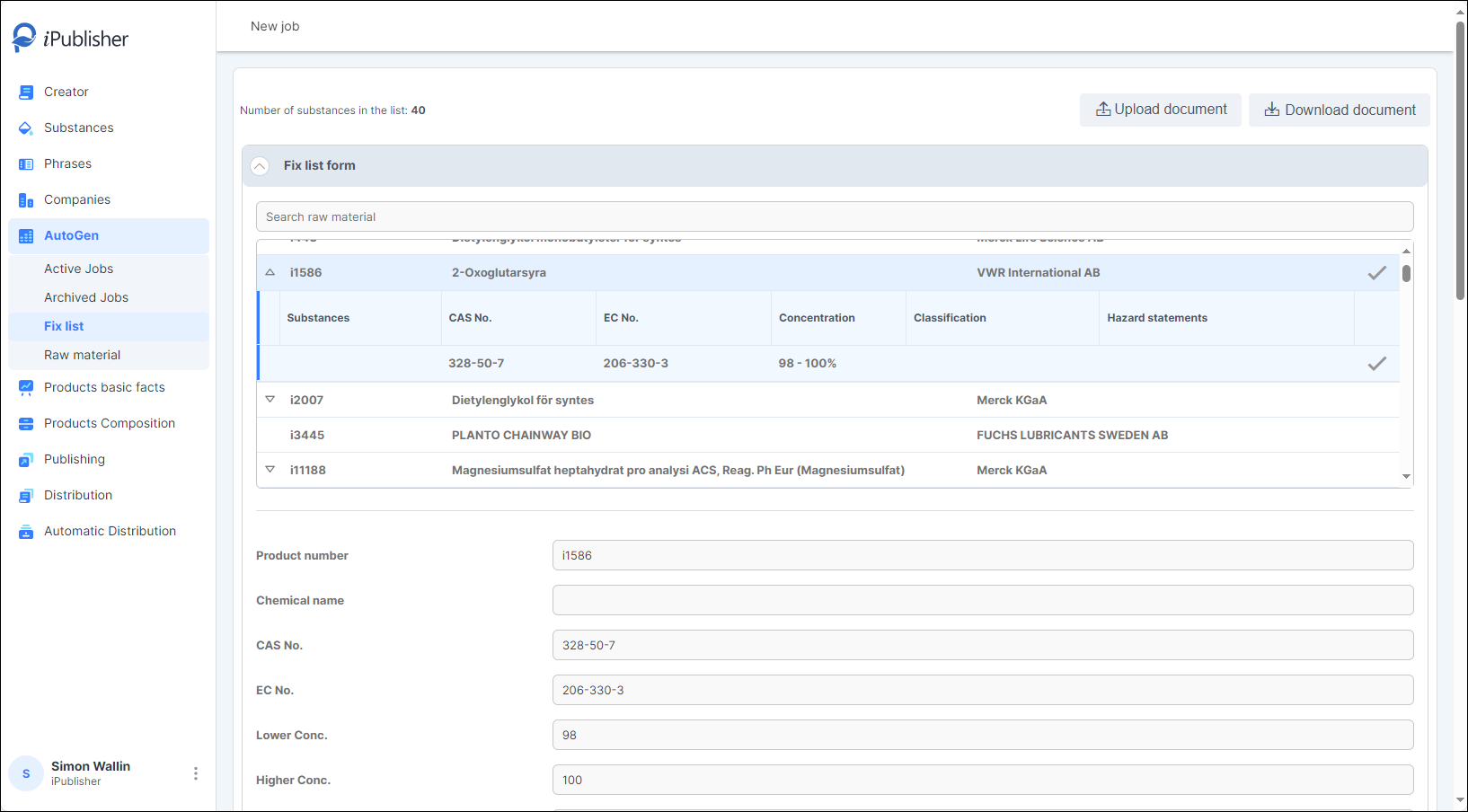
If the raw material has an unclassified substance, you can add it by marking it with Keep unclassified substance: