
For: iPublisher
Where: Publishing > Product info > Label
About label in iPublisher
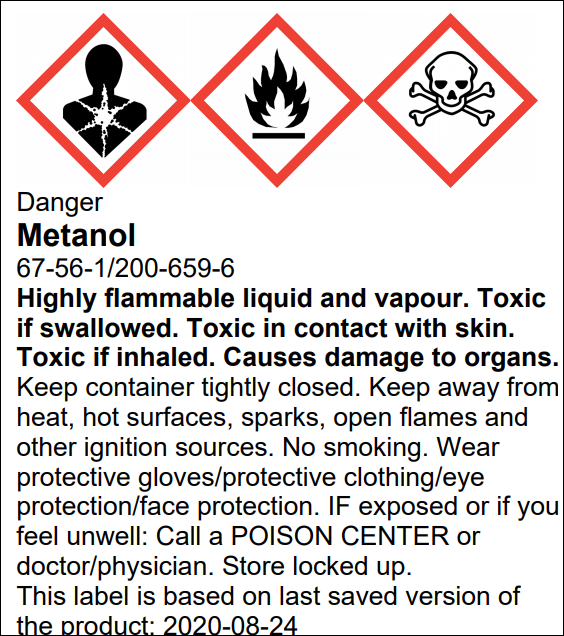
The label module allows the user to create their own labels for chemical products in iPublisher.
Created labels will be in .pdf format and are available for download or printed directly via your computer.
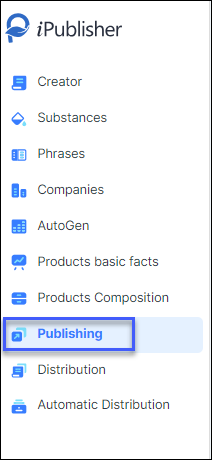
To access the labelling module, click on Publishing in the menu:
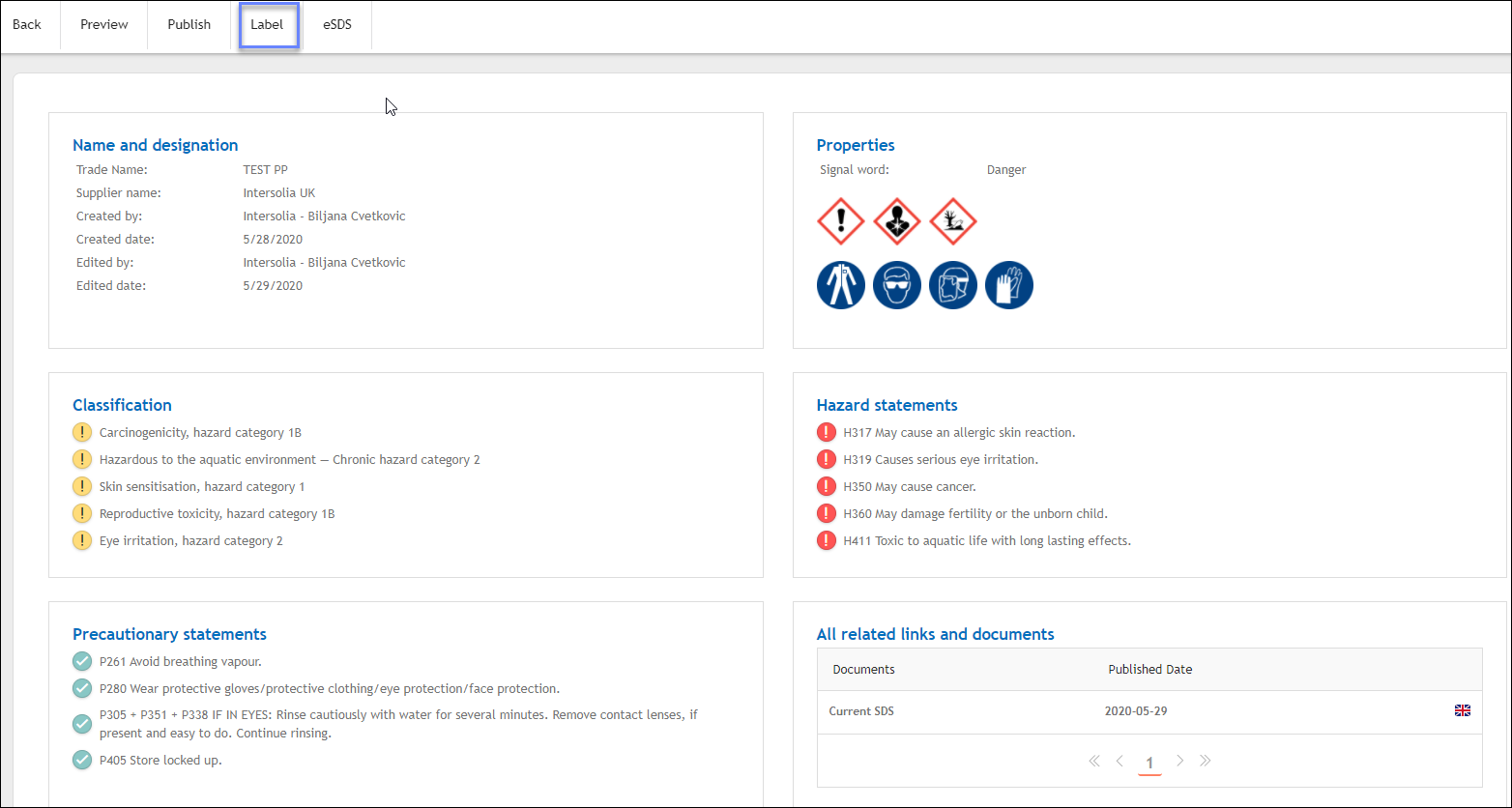
Choose a product from your published product list and click on the button Label
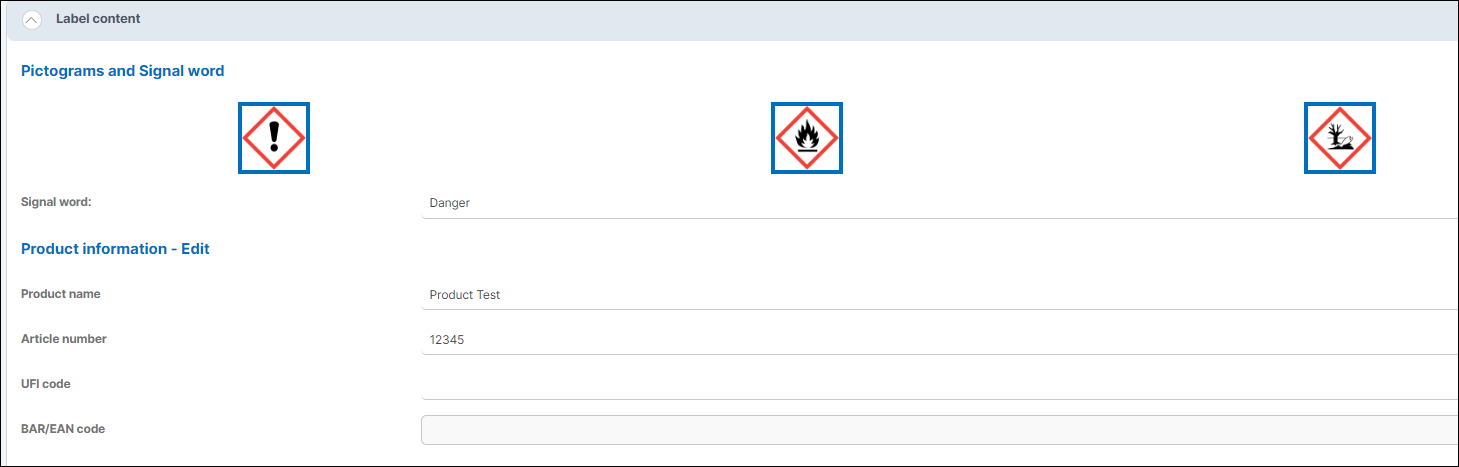
Label content
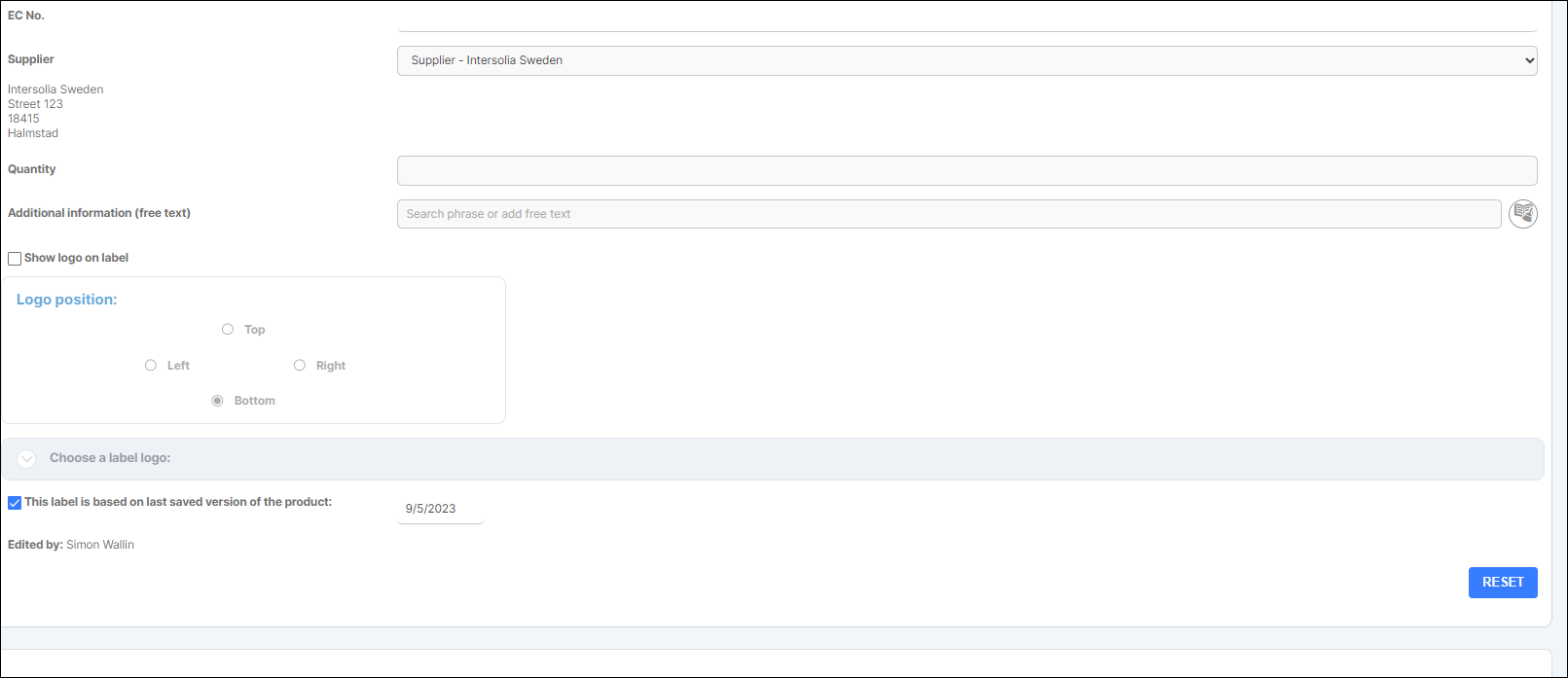
If you wish to edit your label, the label content allows you to both select and remove information.
Keep in mind that you cannot add/change pictograms and other information that was not originally included in your created product.
Fields that can be changed in the label content are as follows:
- BAR/EAN code
Enter a numeric value to generate a BAR/EAN code unique to your product
- Hazard phrases
Select or de-select hazard phrases to be shown on your label
- Precautionary statements
Select or de-select Precautionary statements to be shown on your label
- EC label
Add the phrase 'EC label' for your label
- Supplier
Choose a supplier from the list that was added in Creator for the product
- Quantity
When a product is included in a package quantity can be defined
- Additional information (free text)
Add additional information to be visible on the label by clicking on the book icon.
You can choose whether to add a predefined phrase from the phrase library or add free text.
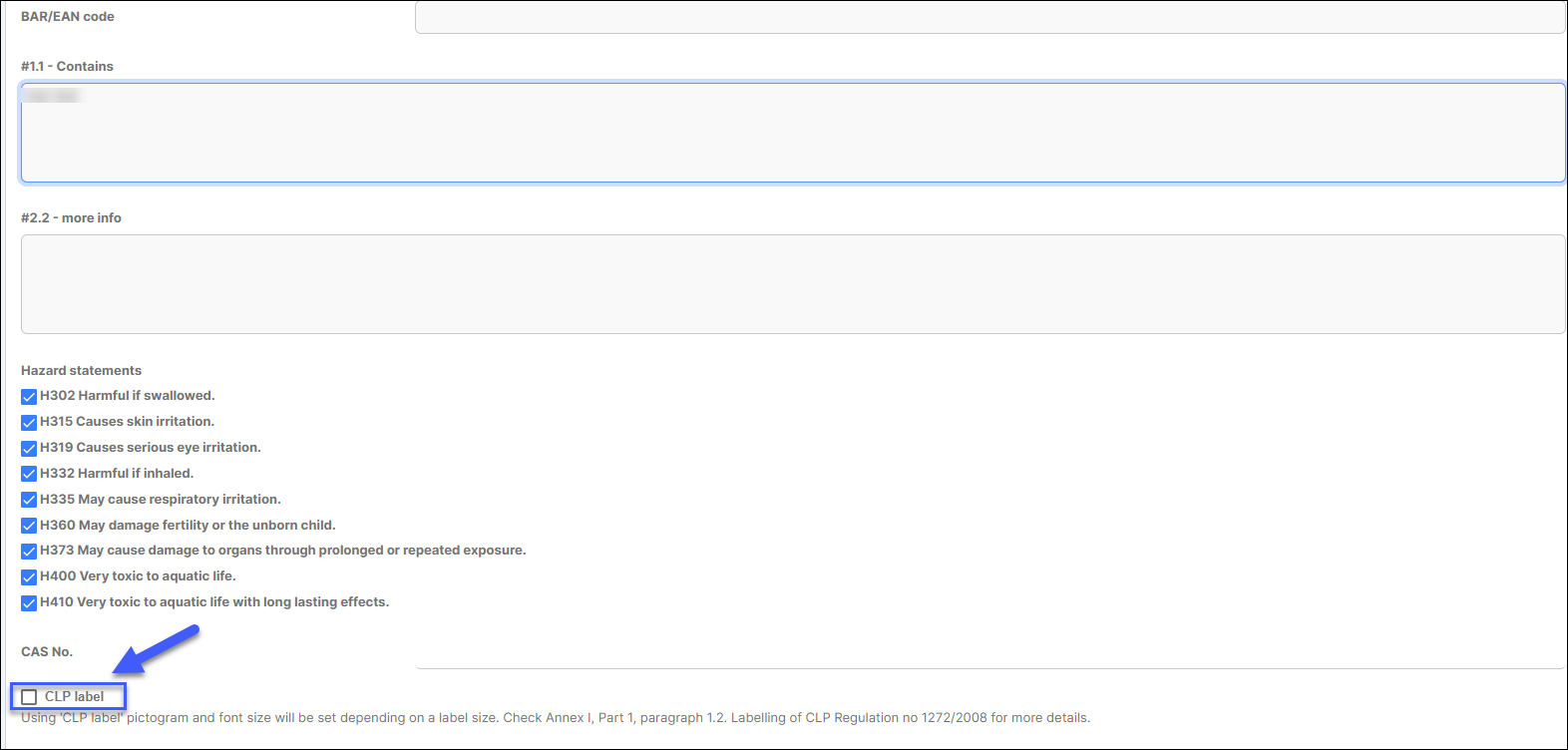
When CLP label checkbox button is selected, pictograms will be rescaled so they will fit the label's width/height and remove pictograms that wont be able to fit. When it is not selected, all pictograms will be presented on the label.
Setup
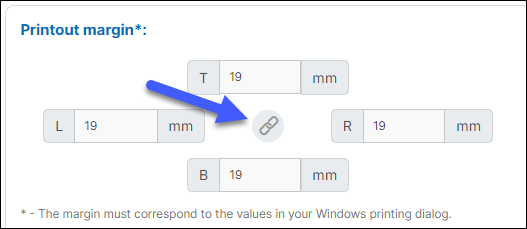
In order for the label to fit your label paper you have the option to change the margins.
The lock icon shown below allows you to either change all margins at the same time or unlock it to change each one separately.
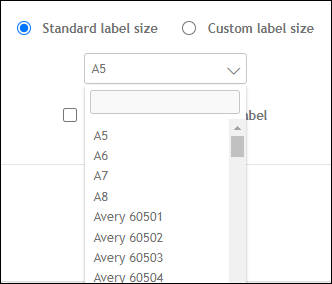
You can choose paper and label size to fit your desired dimensions.

Label size includes label templates from www.avery.com which provides GHS label paper for its customers.
These templates can be accessed in the dropdown menu as seen below.
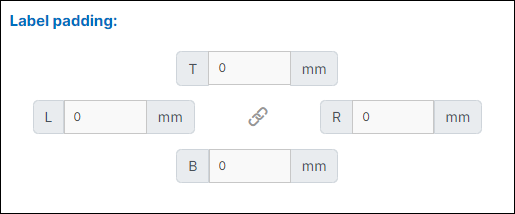
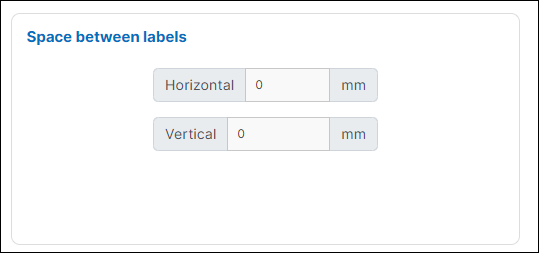
If your labels are too close to each other, the space between them can be changed:
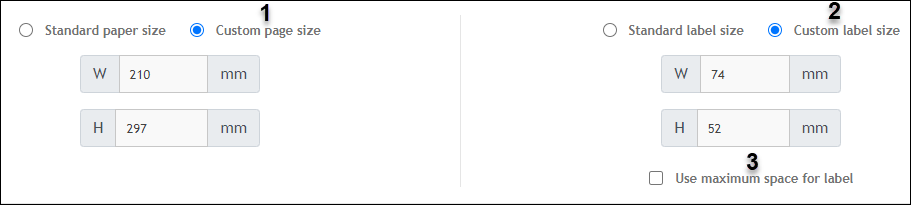
(1) If you have customized label paper you have the option adjust this under Custom page size.
(2) For the label itself and the dimensions it can be changed accordingly under Custom label size.
(3) Use maximum space for label when you see empty space on your label and want to expand it.
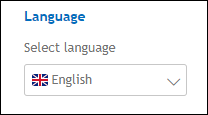
Select the language you want the label to be based on
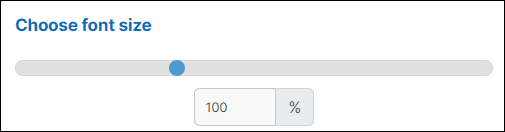
Choose your font size by using the slider or by typing in a number in the box. This is a good tool for making sure all the information fits inside the label.
Click on the button Create when you are done.
A new tab in your browser will open up containing your finished product label.
You can also save your label settings as a template so you can use the same settings again.

If you want to remove a previously saved template you can do that by selecting it from the list and press Remove label template
